Quick Start Guide

Quick Start Guide

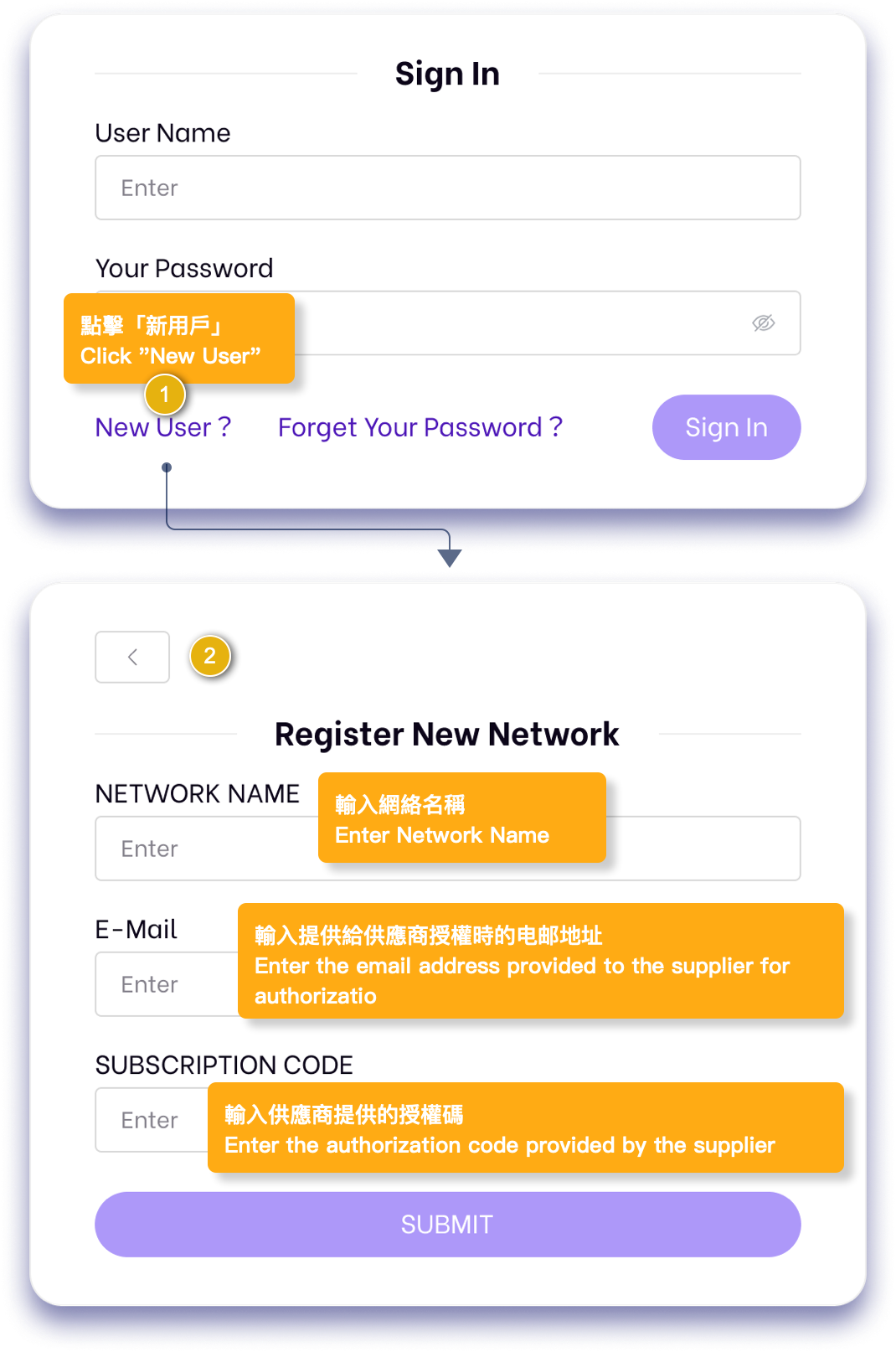
  • New users must obtain an authorization code provided by the supplier to complete the “New User Registration.”
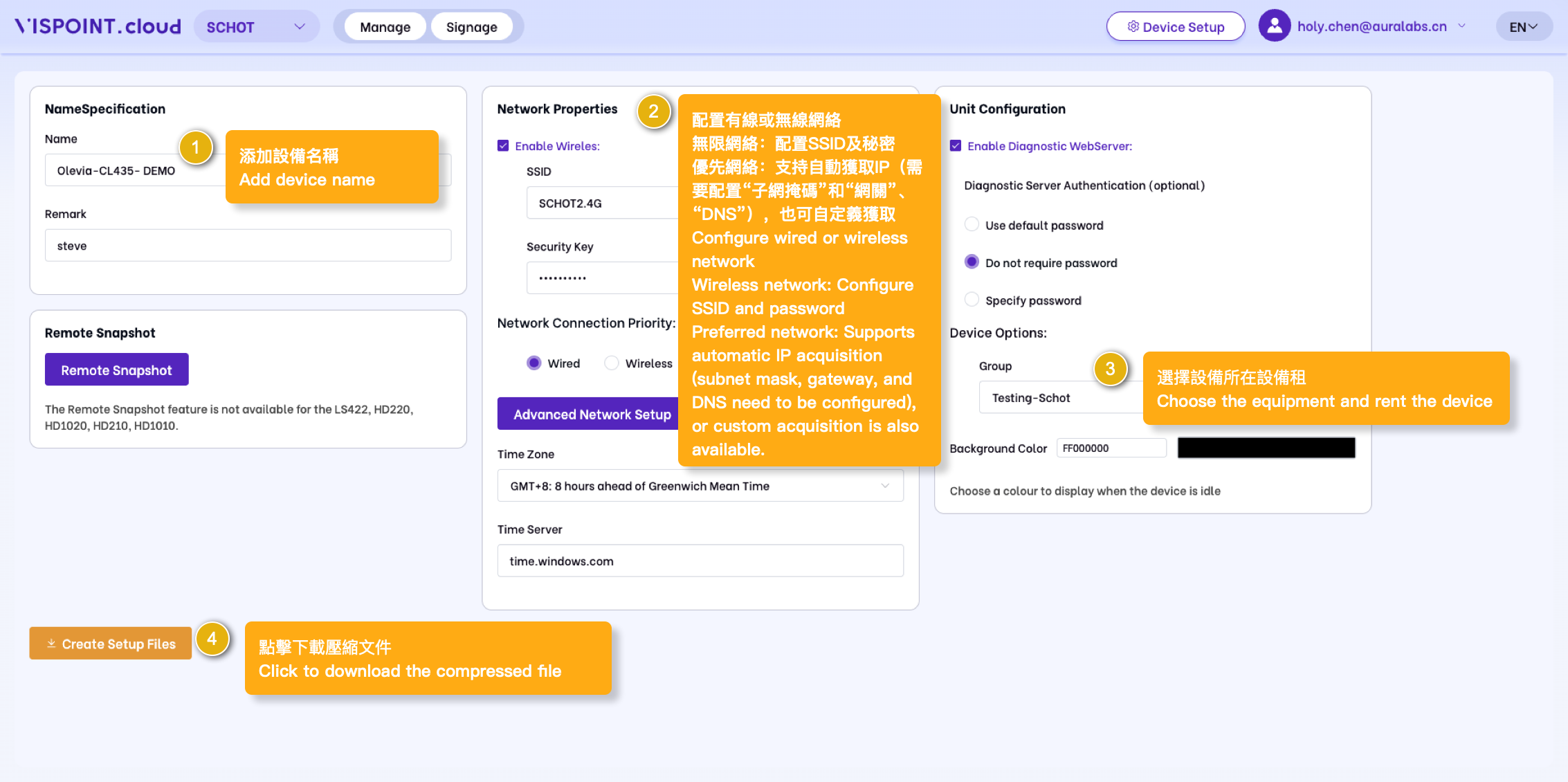
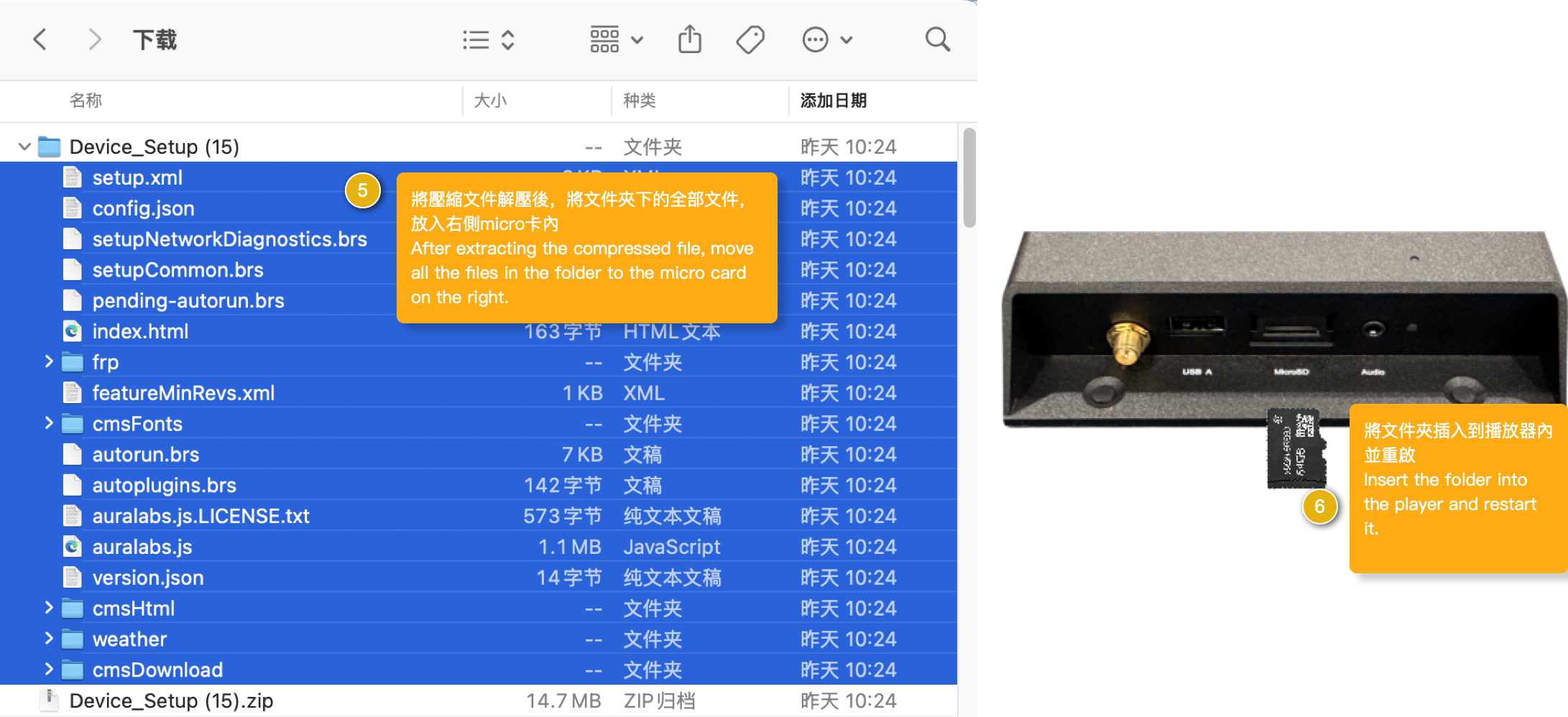
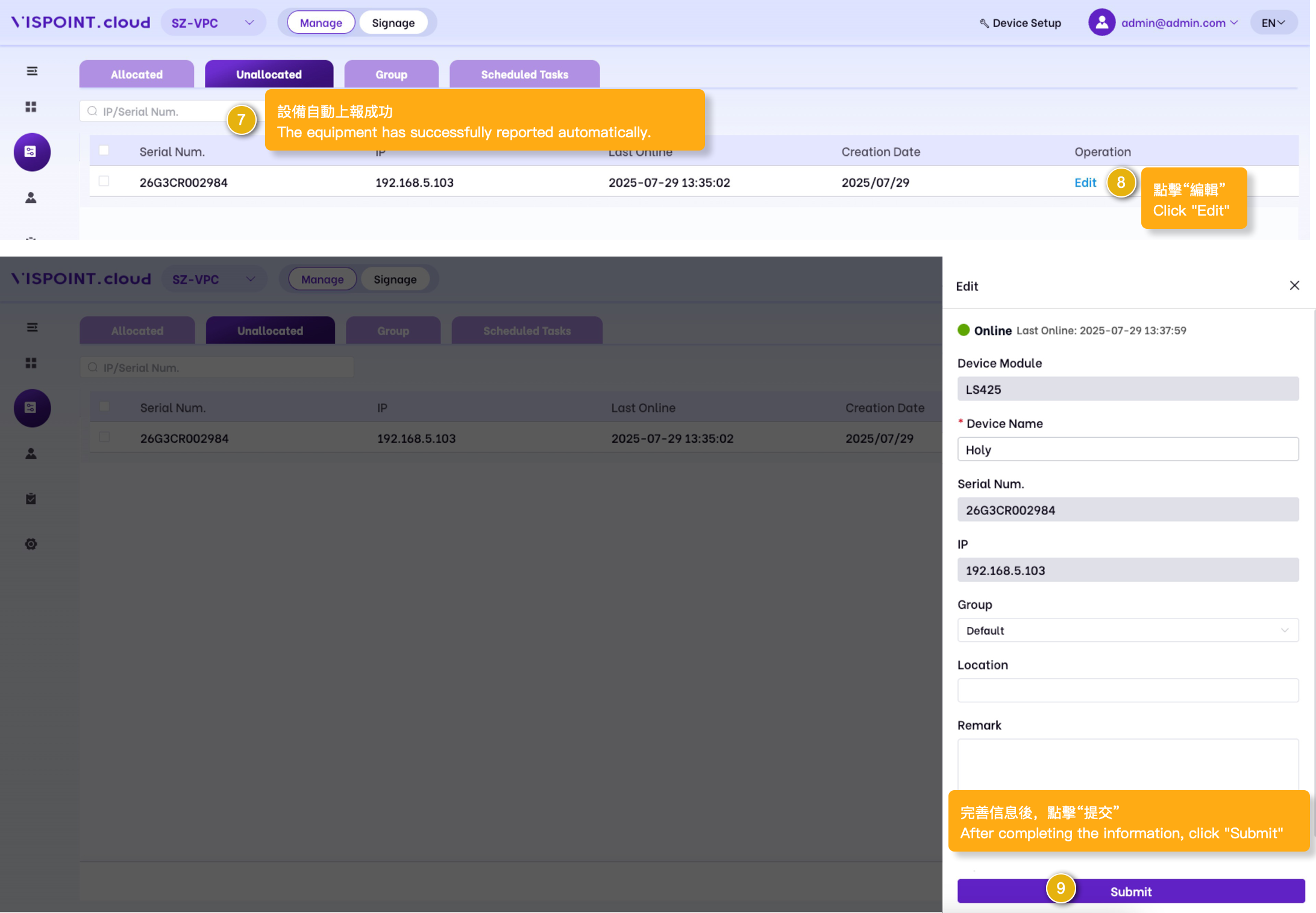
  • Upon accessing the Vispoint.cloud system, a new user must perform “Device Setup.” This involves transferring the downloaded compressed file onto a card, which is then inserted into the playback device. Afterward, the playback device will be registered and appear within the Vispoint.cloud system.
  • ·Once a new playback device is successfully registered on the Vispoint.cloud platform, each device receives a 30-day trial period. After this period ends, it’s necessary to purchase a Device Authorization from the supplier to continue using the playback device.

Vispoint.cloud Workflow Process

New User Registration

  • Upon successful submission, you will receive an email containing a temporary password. On the login page, enter your email.
  • copy and paste the temporary password, and click login to access the Vispoint.cloud platform successfully.

Device setup

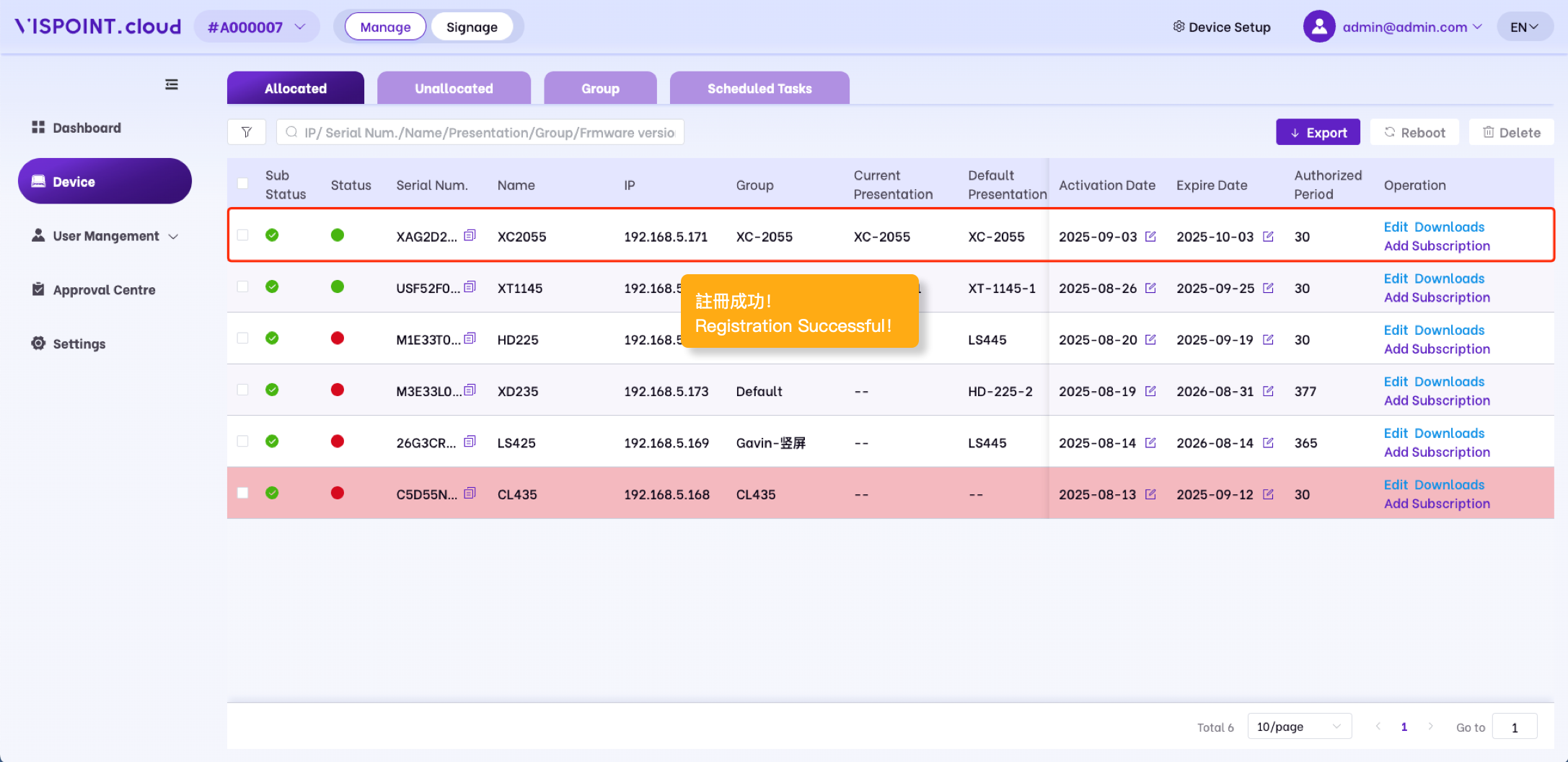
Player registration and authorisation

Device Authorization

  • Method 1: The system automatically grants authorization by default, which can be disabled on the device edit page.
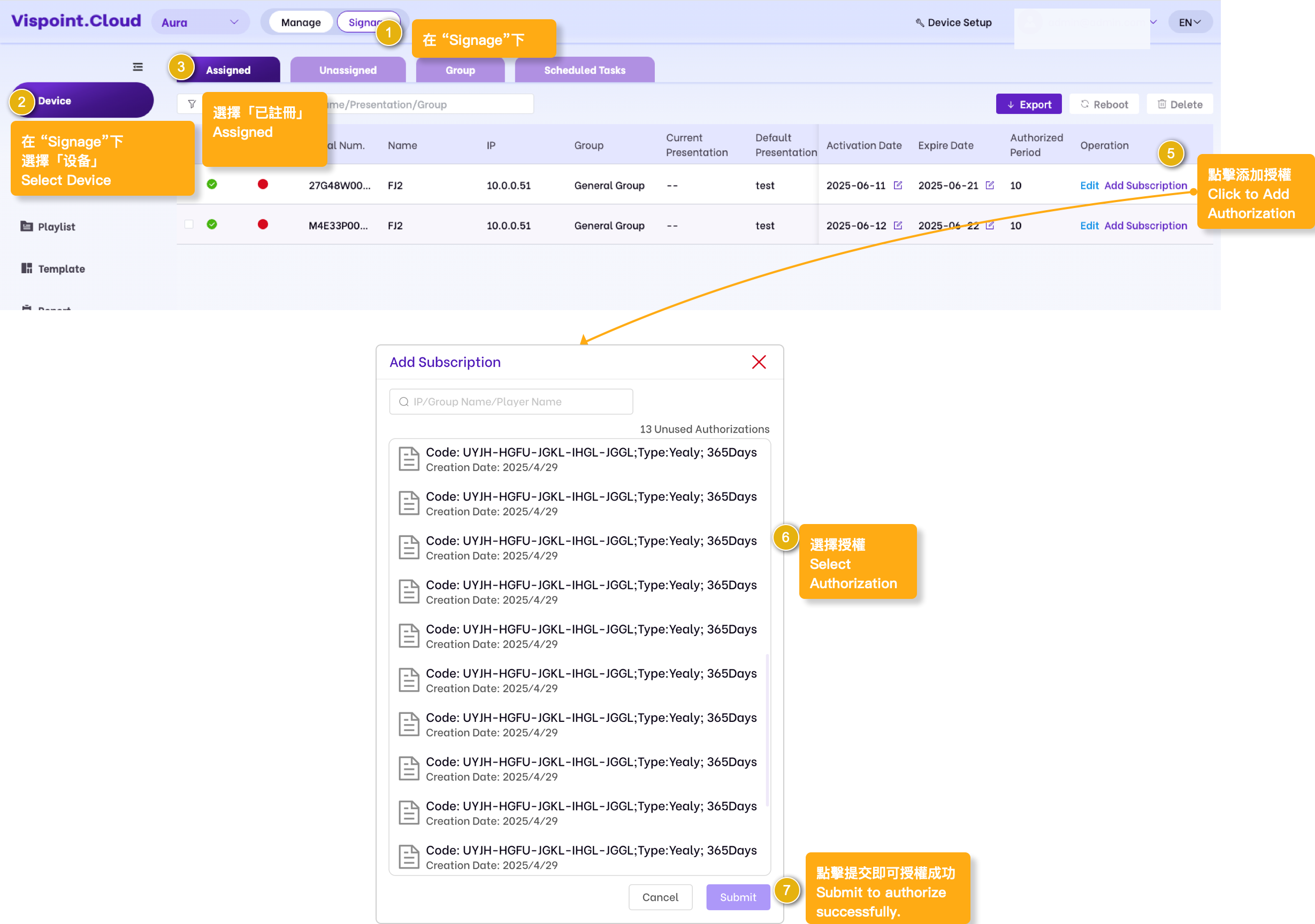
  • Method 2: Single Device Authorization

Equipment List Explanation

  1. Export:Click “Export” to download the list data according to the specified filter criteria.
  2. Reboot:After selecting the devices from the list, click “Reboot” and confirm the action to restart the devices.
  3. Delete:After selecting the devices from the list, click “Delete” and confirm the action to remove the devices.
  4. Sub Status:”Green” indicates that the device is within the subscription validity period, while “red” indicates that the device’s subscription has expired.
  5. Status: “Green” indicates online status, “red” indicates offline status, and “yellow” indicates content download in progress.
  6. Light red background: Indicates that the device subscription is about to expire or has already expired.
  7. Current Presentation:Show the name of the demo template currently being played by this player.
  8. Default Presentation:Display the name of the preset playback demo template for this player when there is nocontent playing.
  9. Equipment Management Page: Click to enter the equipment management page. Only when the equipment is online can it be viewed.
  10. Edit:Click “Edit” to access the device editing page.
  11. Filter:Devices on the list can be filtered by creation time, display status, and player status.
  12. Search:Devices on the list can be searched using a fuzzy search based on IP address, serial number, player name, current demo template, and keywords from device groups.
  13. Add Subscription:Click “Add Subscription” select authorization to complete the addition. (The authorization code must be purchased from the supplier and activated on the “Control/Dashboard” interface before use.)
  14. Download: Click “Download” to view the content currently being downloaded on your device.

Editing Page

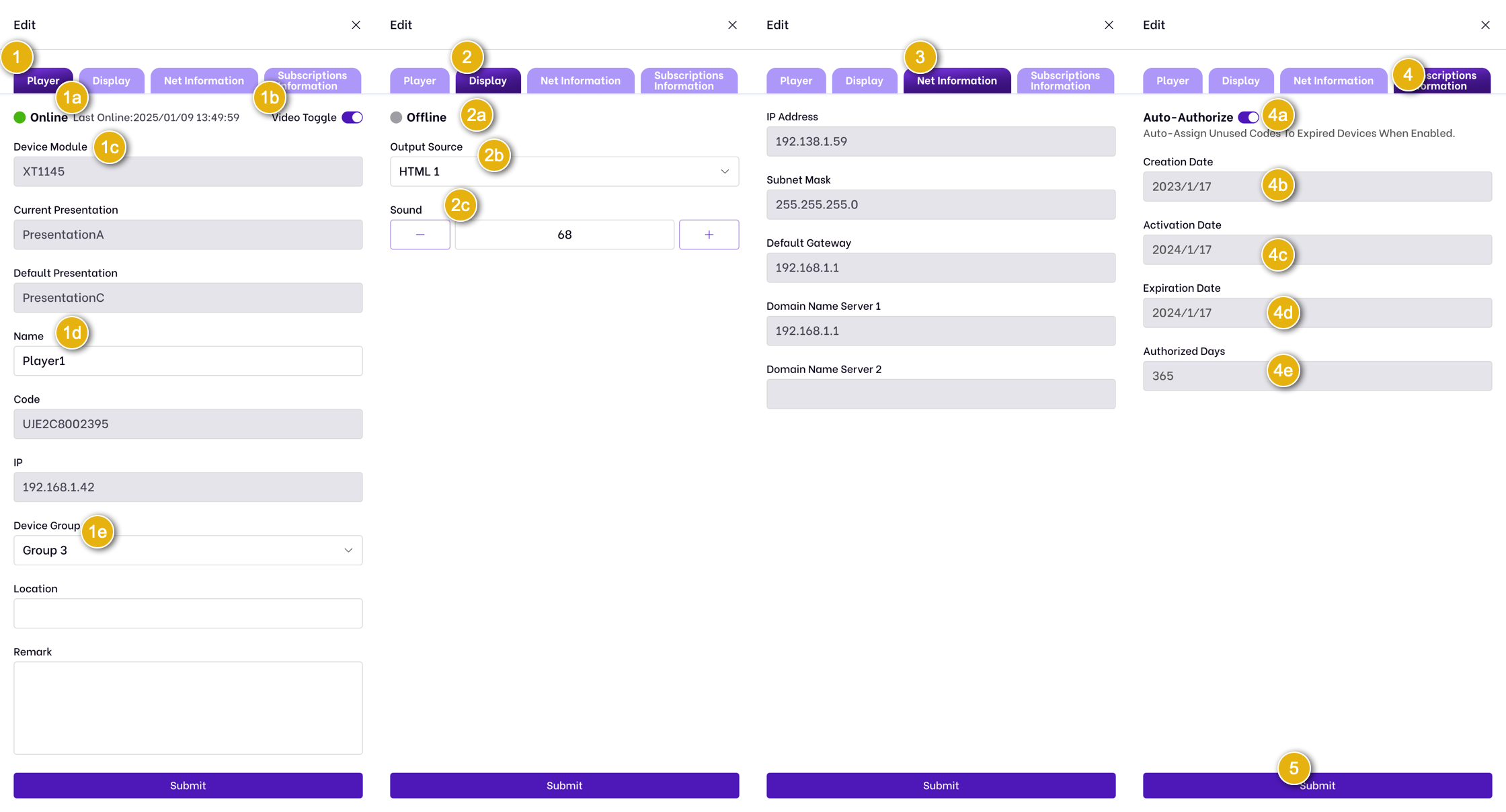
1.Player the basic information related to the player is as follows:

1a.Status:Show the player’s online or offline status and their last communication time.

1b.Model:Show the current device model.

1c.Name:Show the current device name, which can be changed manually.

1d.Device Group:Display the device group that this player belongs to, which can be manually modified; device group information can be added in the “Group” section.

2. Display device network information, which can be configured in “Device Setup” and is shown here for display purposes only.

3.The authorization information is as follows:

3a.Click to disable automatic authorization for the current device.

3b.Creation Date:Display device successfully created date in Vispoint.cloud.

3c.Activation Date:Display the date when the equipment was last activated or successfully authorized.

3d.Expiration Date:Display the expiration date for device authorization.

3e.Authorized Days:Display the number of days for which the device has been authorized.

4.Submit:Click select “Submit” to successfully save and apply the modified information.

Group

Description:Every player must belong to a device group.

  1. Add Group:Click “Add”, and the right-side drawer interface will slide out for you to add.
  2. Reboot:After selecting the device group(s) from the list, click ‘Restart’ and confirm the action to reboot all devices in the group.
  3. Delete:After selecting the target device group(s) from the list, click ‘Delete’ and confirm the action to remove the group(s). Upon successful deletion, all devices within the deleted group(s) will automatically be reassigned to the ‘Default Group’.
  4. General Group: By default, there is a “General Group” in the device group list, and it cannot be deleted.
  5. Device Number:Displaying the total number of players in the device group
  6. Current Presentation:Shows the name of the currently playing demo presentation module for each player in the device group.
  7. Default Presentation:Presentation module name that activates group players when no content is scheduled.
  8. Edit: Click ‘Edit’ to change the device group name and establish default demo templates.
  9. Search:The system enables fuzzy searches on key fields (IP, device group name, device name) to filter device group entries in the list.

Scheduled Tasks

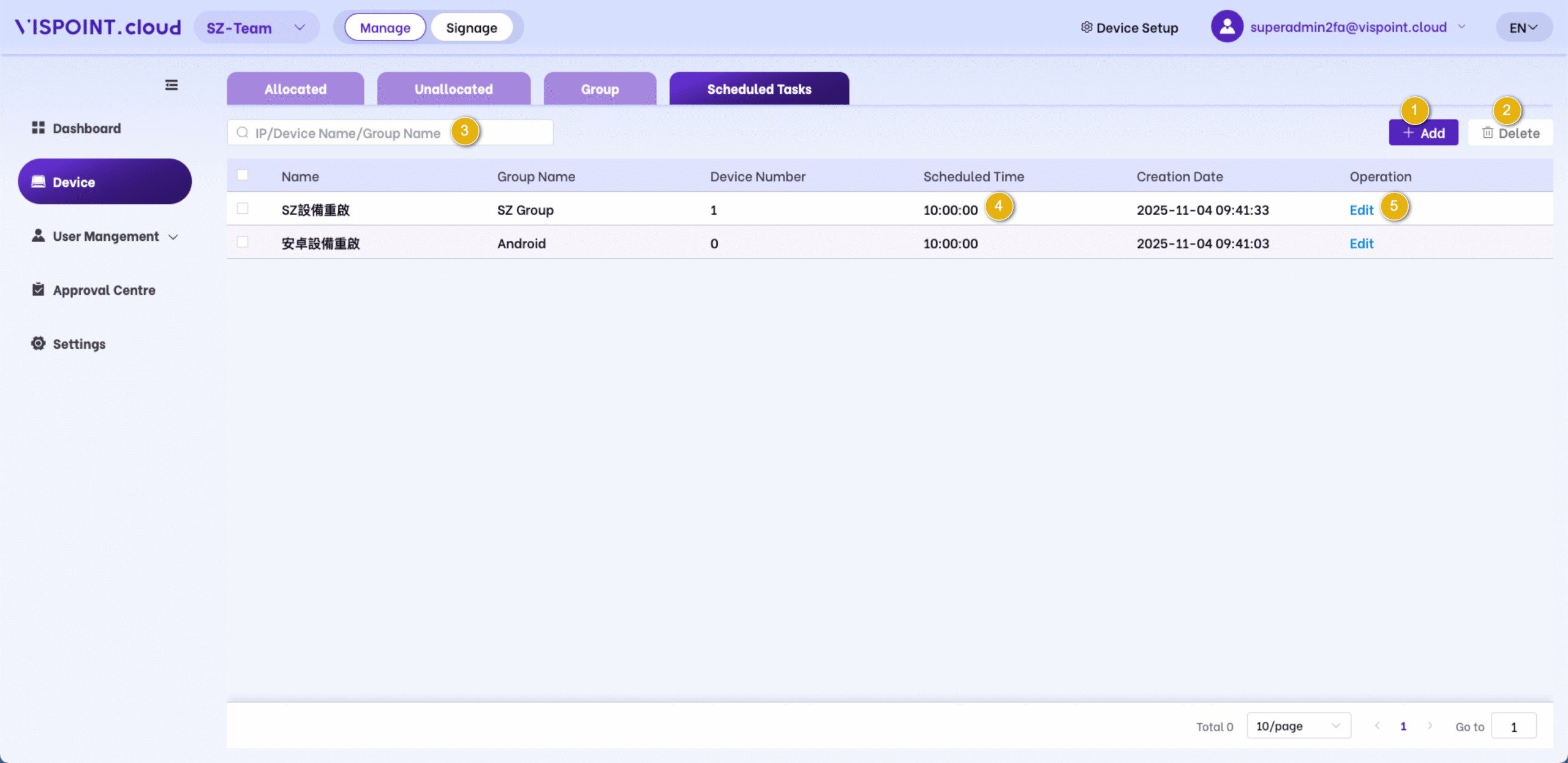
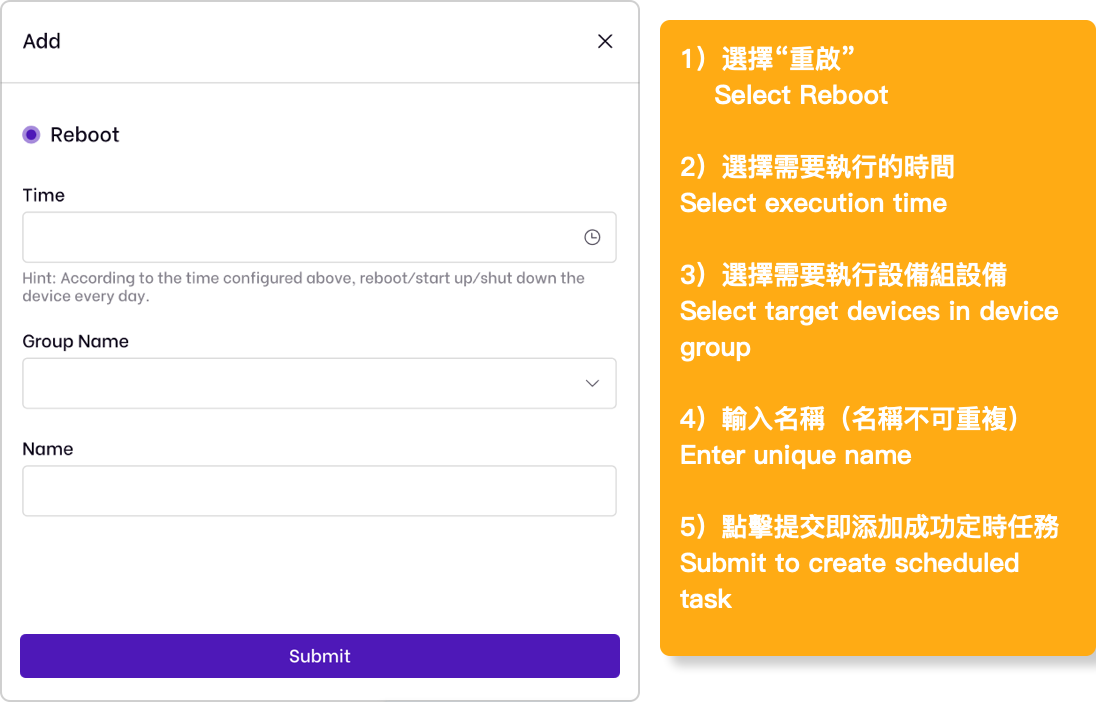
Description: The device group is restarted. After the operation is successful, all the designs within the device group will be restarted; The scheduled tasks are executed at the specified time points every day.

1.Add:Click ‘Add’ to reveal the side panel for Schedule new tasks.

2.Delete:After selecting tasks from the list, click ‘Delete’ and confirm the removal.

3.Search:Supports fuzzy search for scheduled tasks by player IP, device group name, or device name.

4.Scheduled Time:Daily Execution Times for Device Group Tasks.

5.Edit:Click ‘Edit’ to change settings.

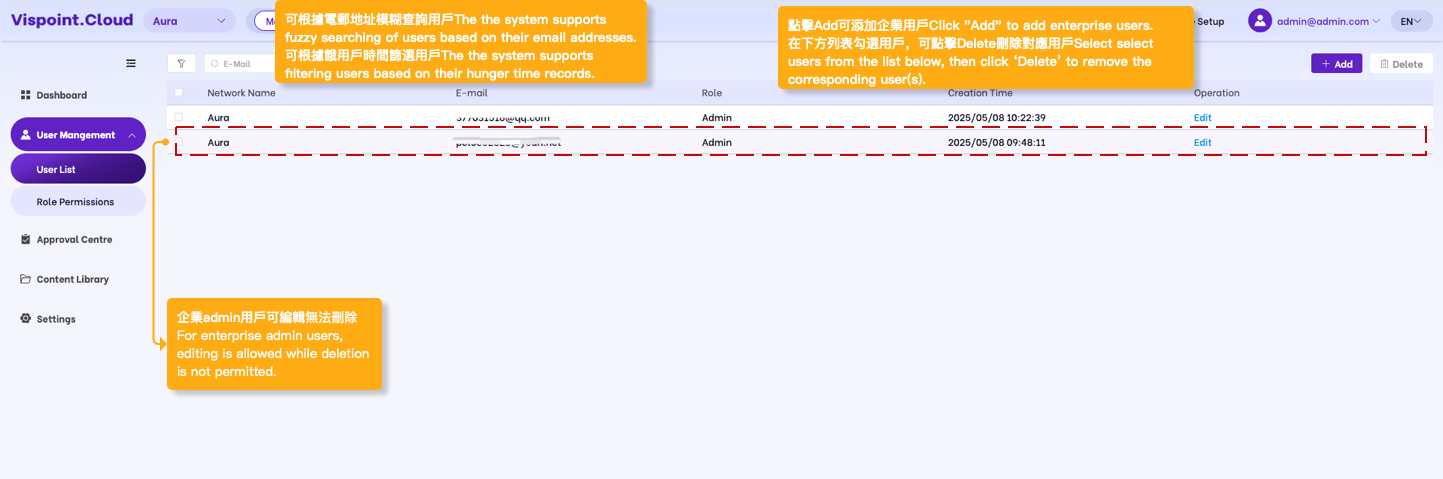
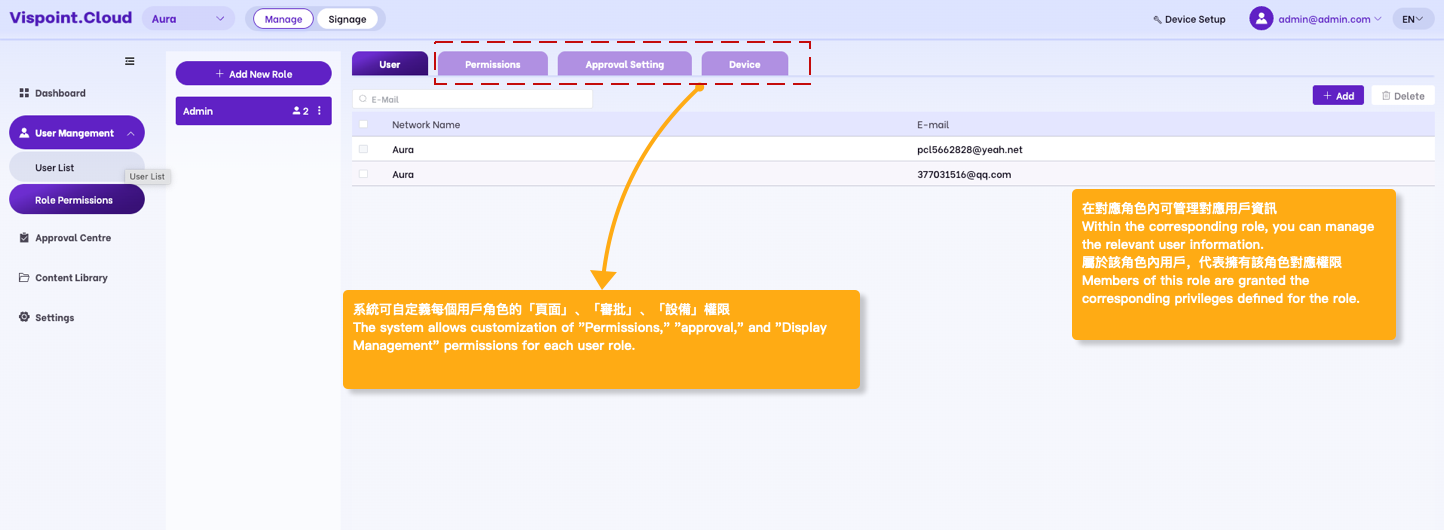
User Mangement

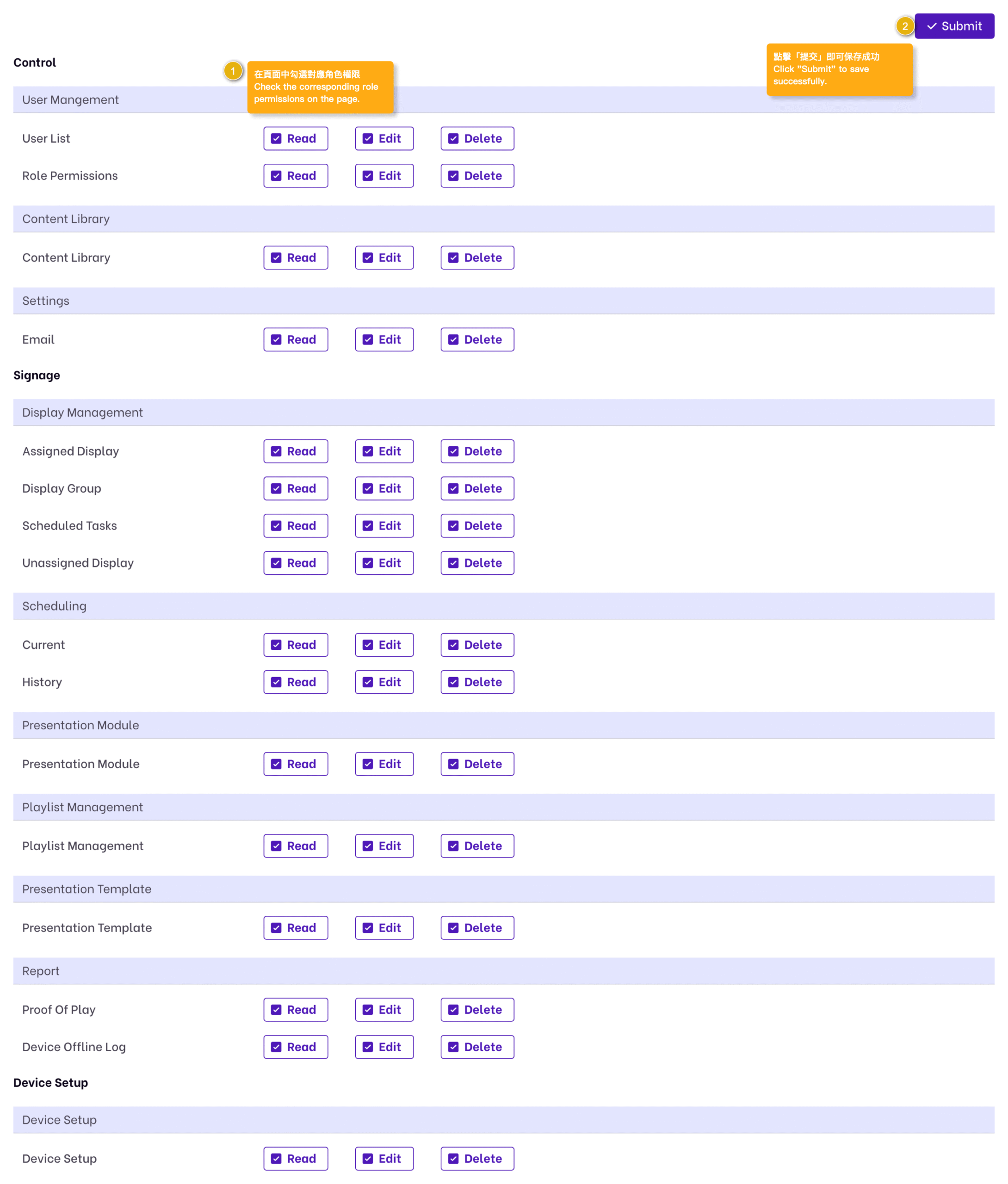
The Vispoint.cloud platform provides a customizable user role permission system, enabling you to accurately select system permissions based on your
organization’s needs.

  • ·Prerequisite: Have editing permissions for this module.

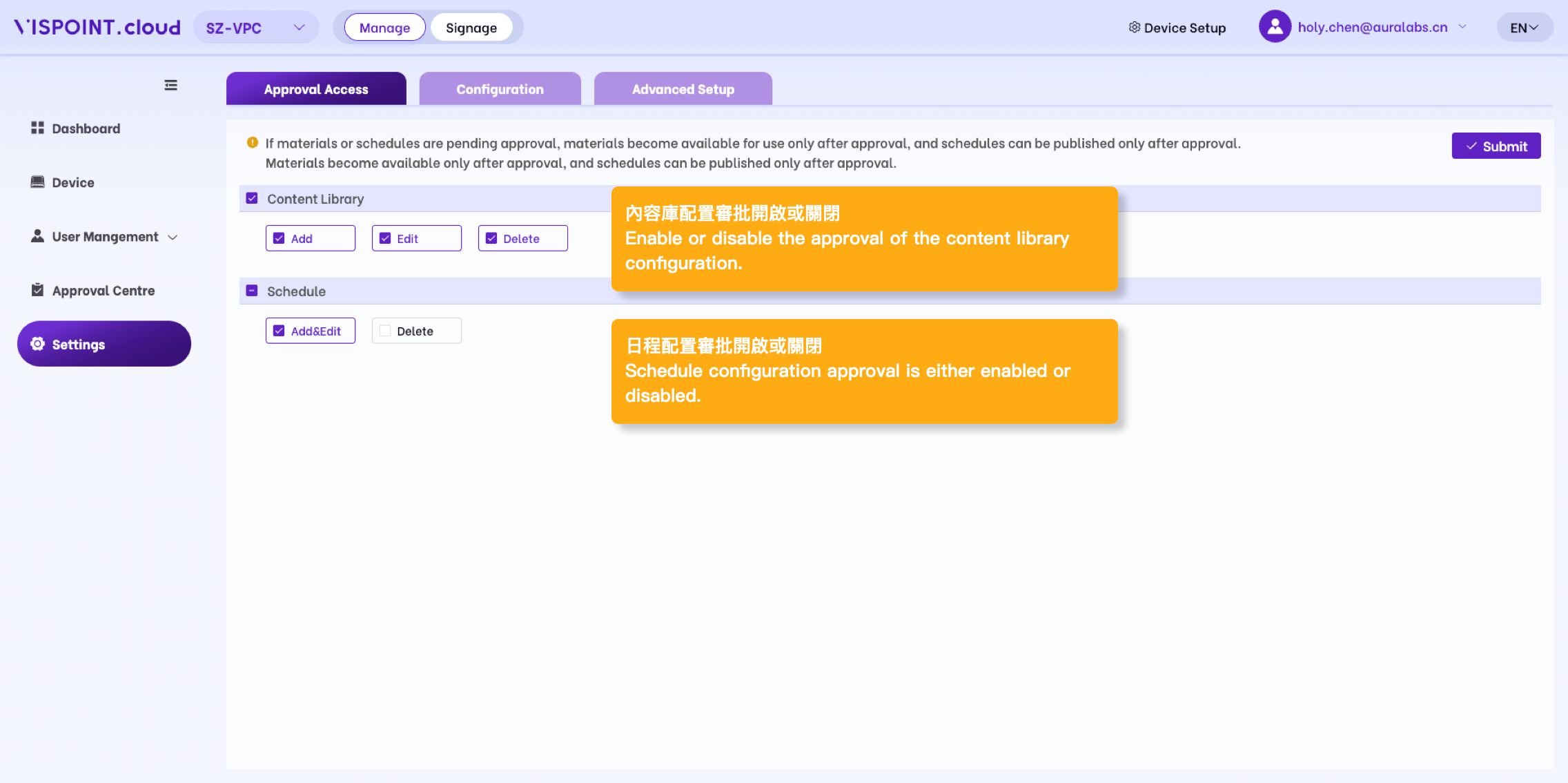
The Vispoint.cloud platform provides “Schedule Approval” and “Material Content Approval” systems. The approval functions can standardise the business process of releasing schedules, minimise human errors and arbitrariness, and effectively control risks to ensure that key operations or decisions are reviewed and to reduce the likelihood of illegal operations or incorrect decision-making.

·Prerequisite: Have permissions for the appropriate device group and approval permissions.

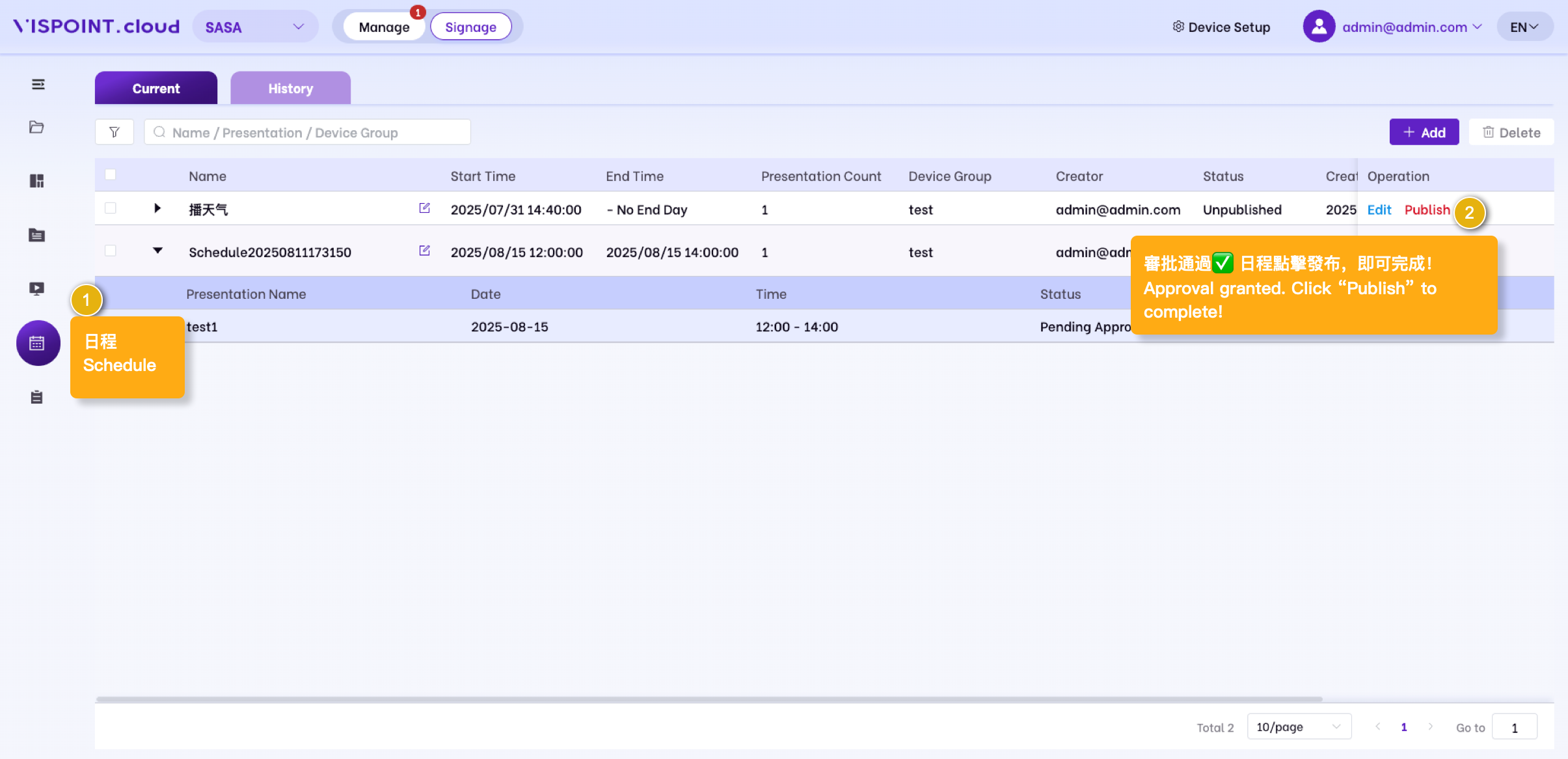
Publish after schedule approval.

Settings

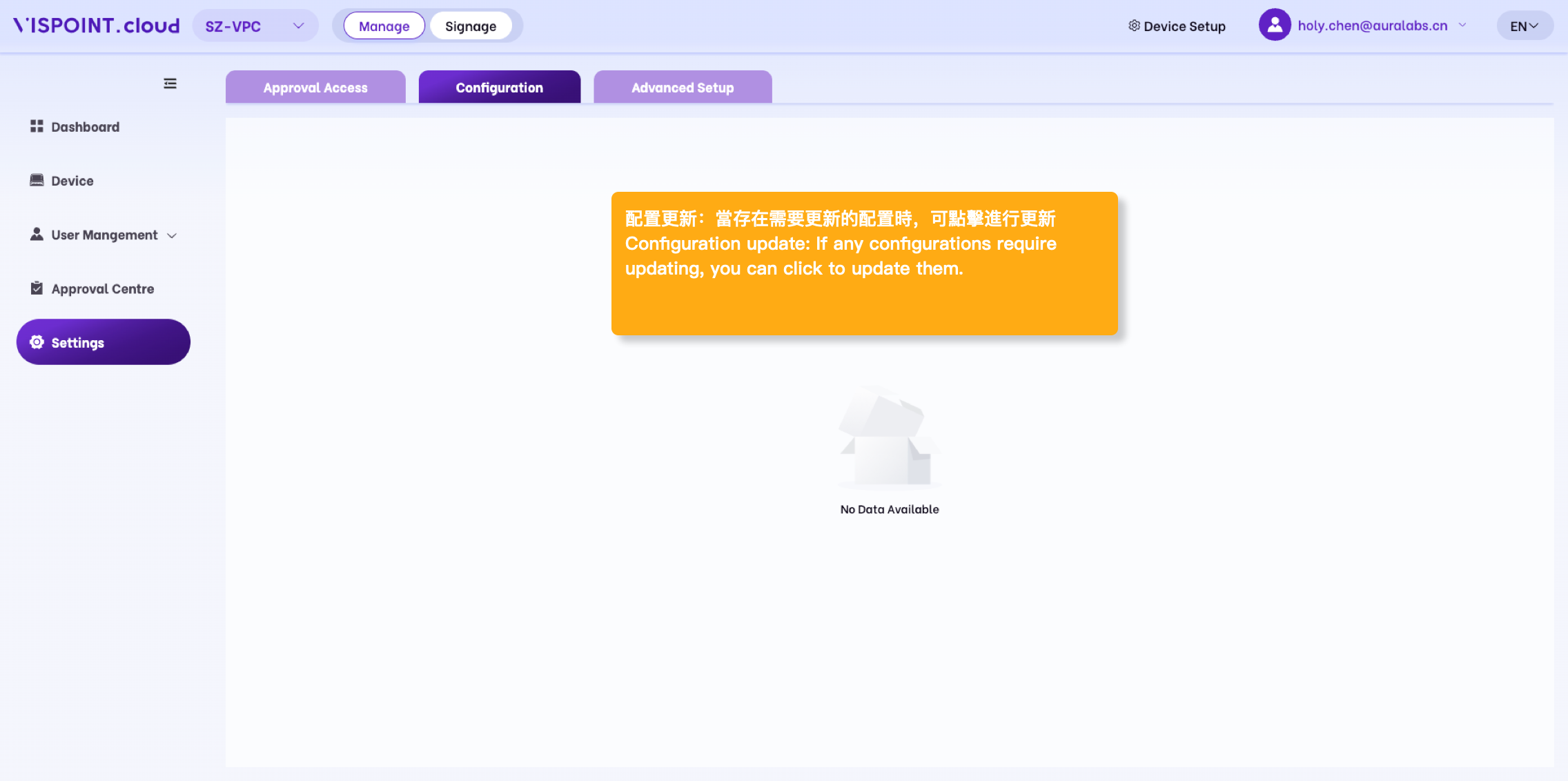
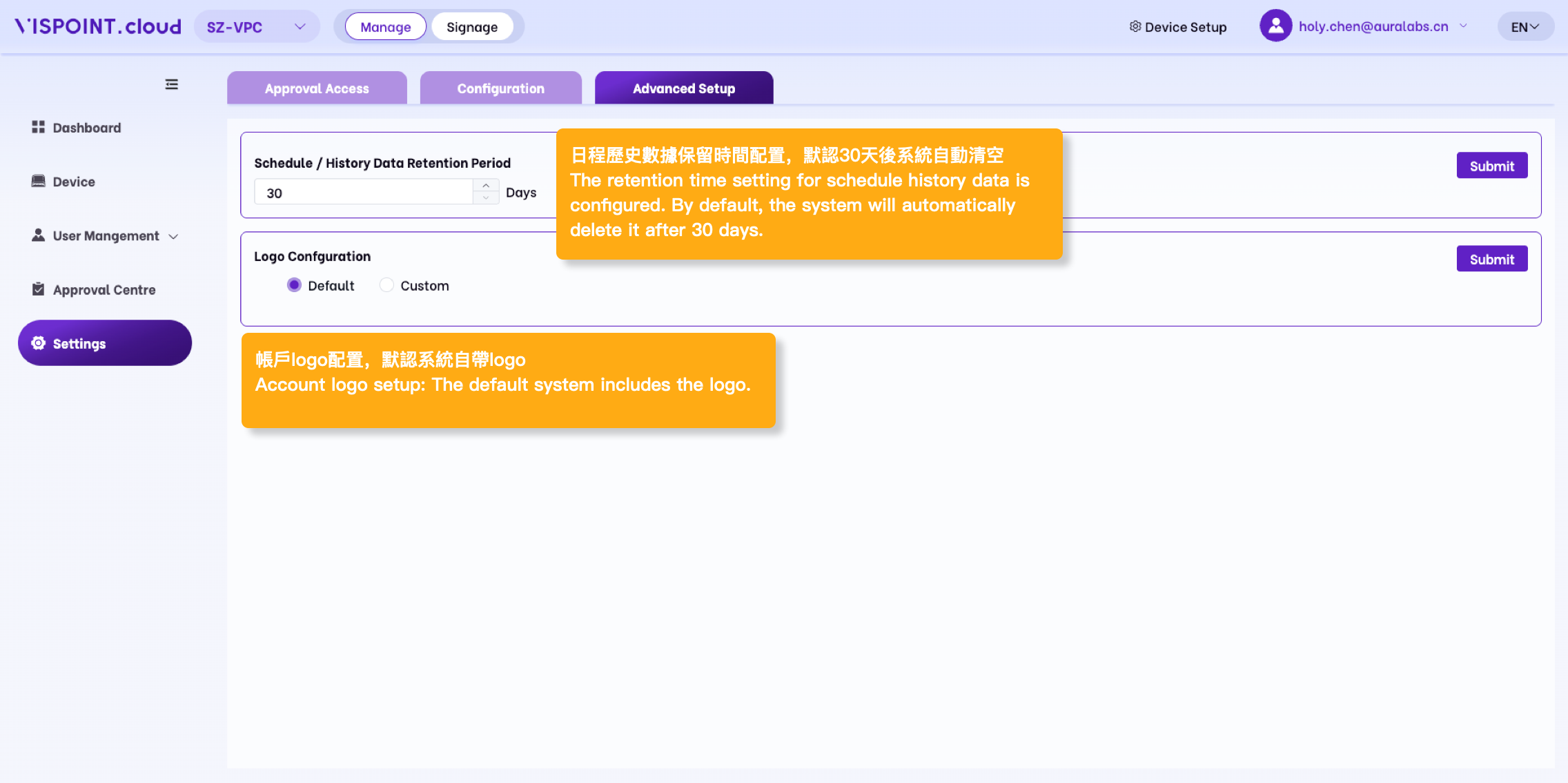
System Settings include: enabling or disabling approval permissions, configuration updates, and advanced settings

  • Prerequisite: Have permission for this module.

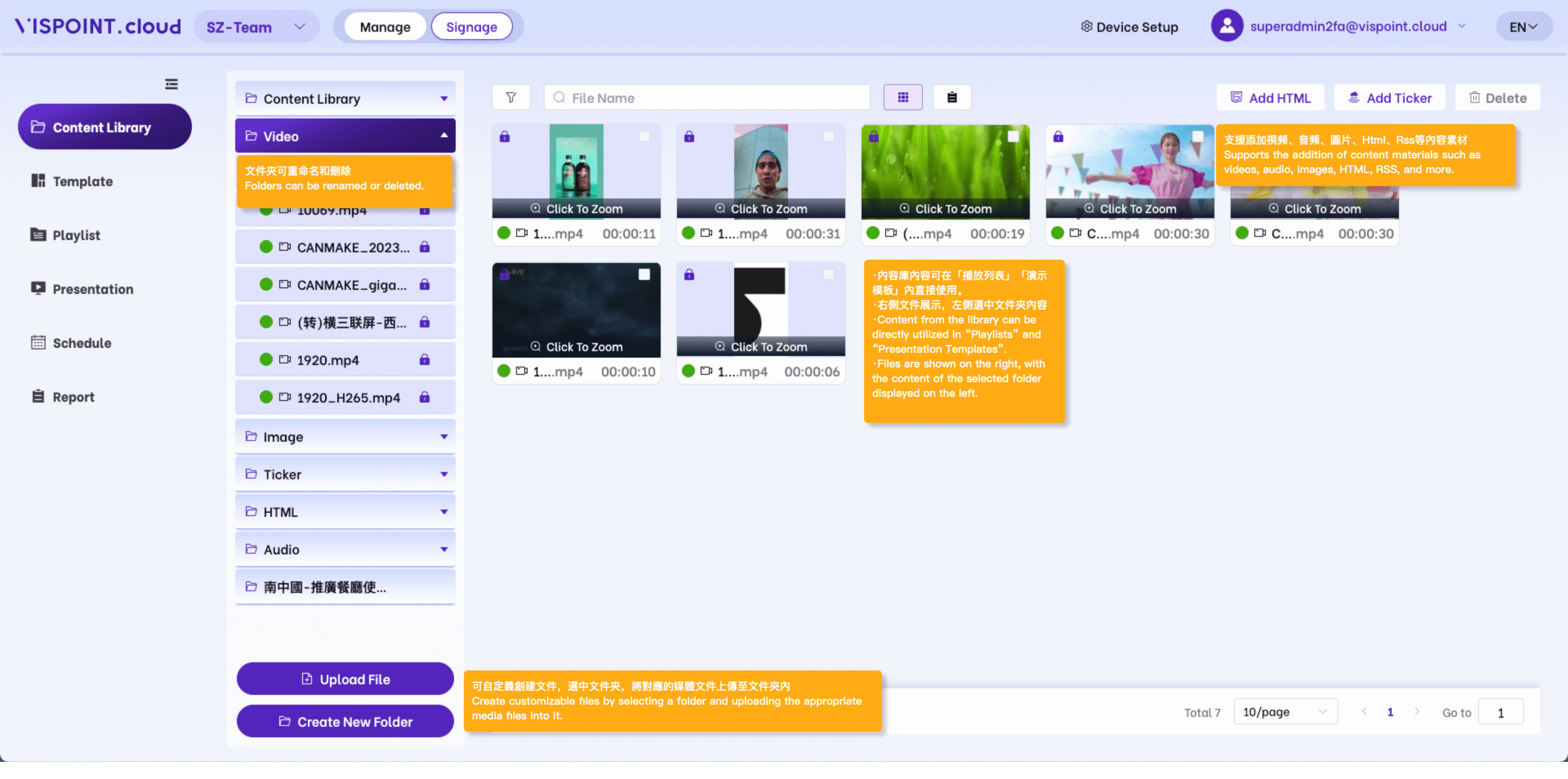
Content Library

Uploading, Editing, and Deleting Files in the Vispoint.cloud Content Library

  • For Approved Schedules: Once a schedule is approved, modifying files within that schedule—whether uploading, editing, or deleting—will not impact the approved schedule.
  • For Pending Schedules (Before Approval): For unapproved schedules, any uploads, edits, or deletions of files will trigger real-time data synchronization and updates.
  • The content will be used in both [Playlists] and [Presentation].
  • Prerequisite: Have permissions for the relevant device group and receive approval permissions.

Schedule

In this module, users can publish the created presentation to the schedule.
The schedule consists of the ‘current schedule’ and the ‘historical schedule.’
Current agenda: Display data for pending approval, unpublished, not started, and in progress statuses.
Historical schedule display: rejected, expired and unpublished, expired and unreviewed, ended status data

  • Prerequisite: Have permission for this module.

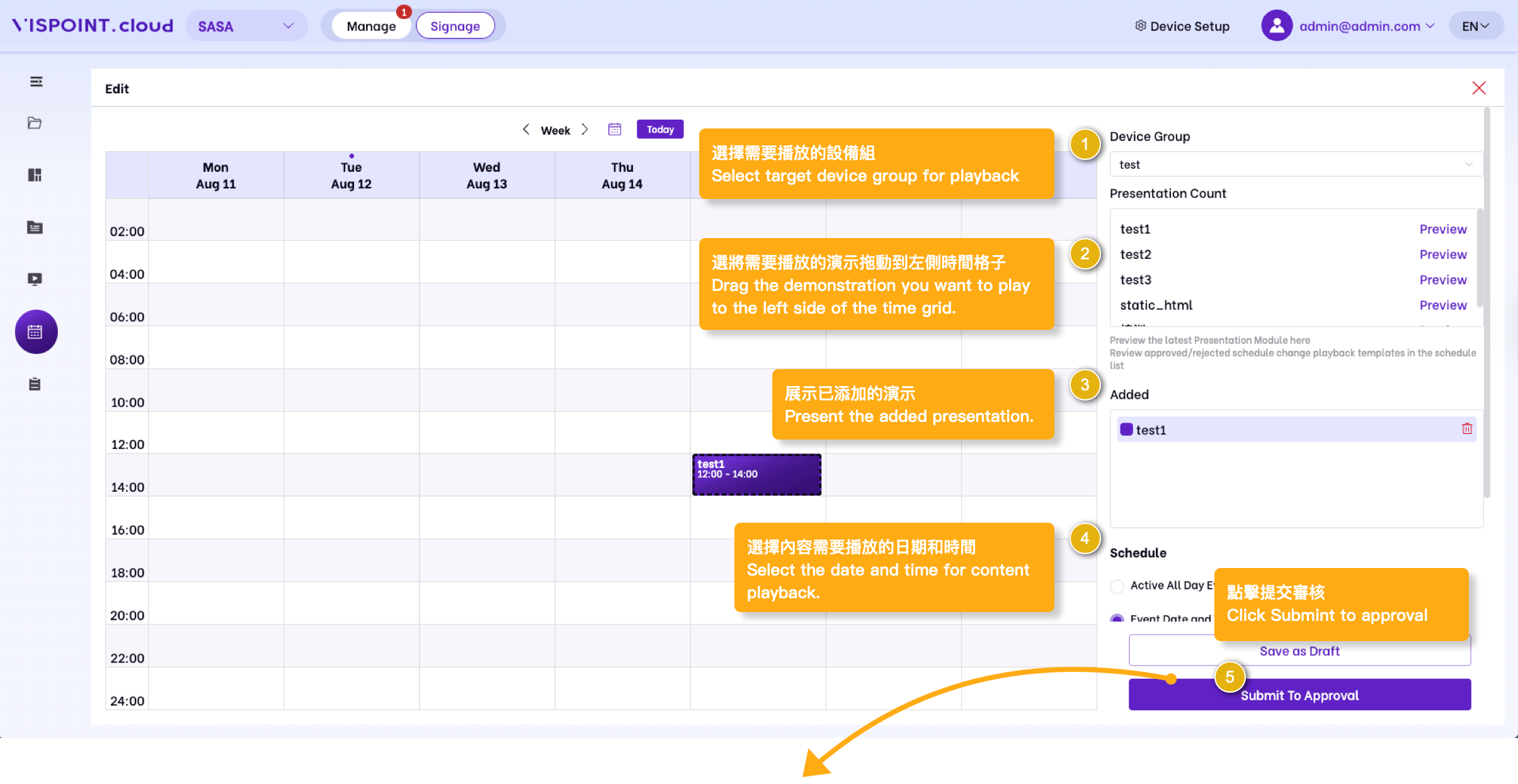
Add Schedule

  • Whether the settings for adding new schedules and editing schedules support approval requirements.
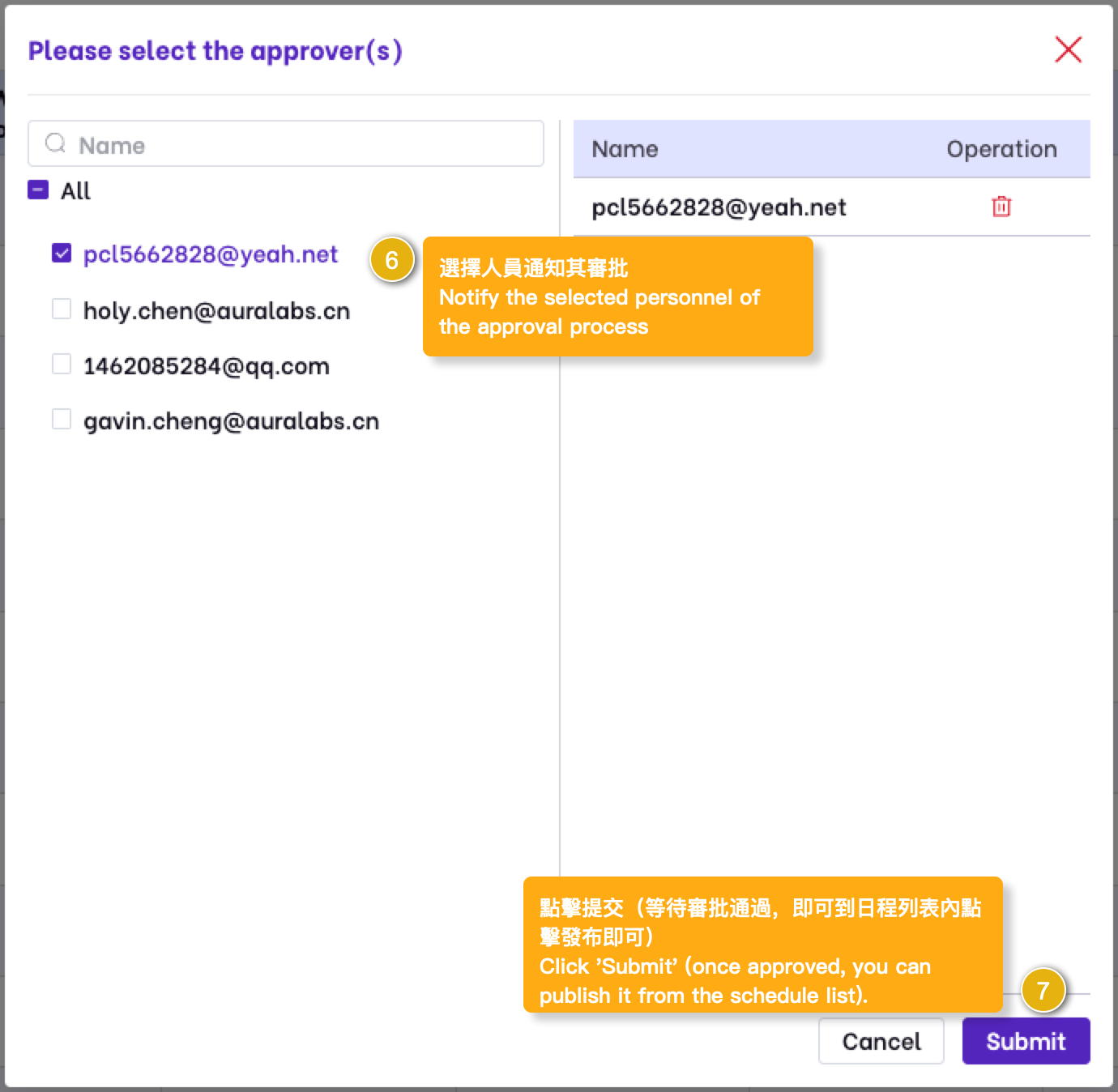
  • The interface shown below requires approval. If no approval is necessary, you can publish it directly.

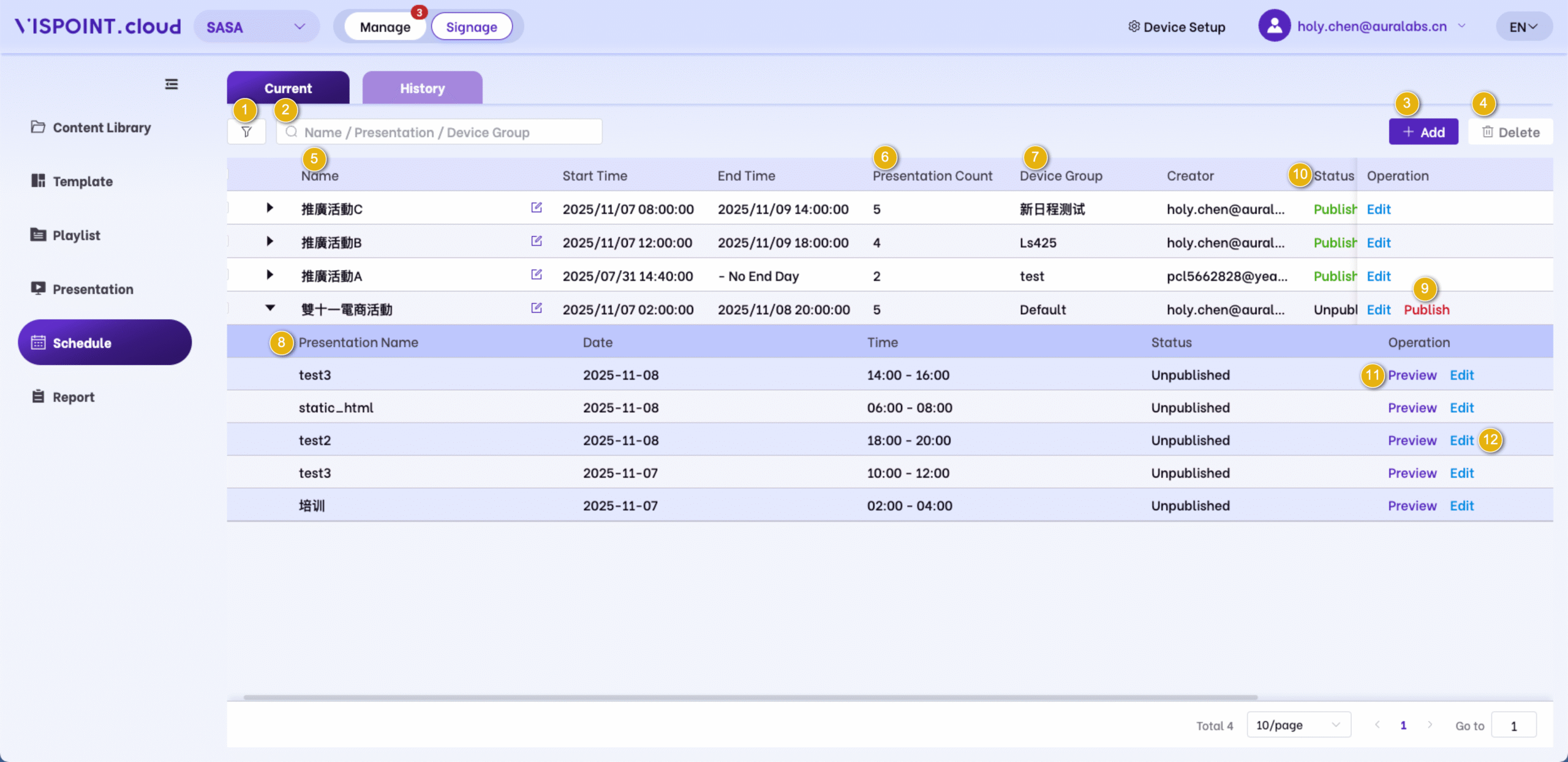
Current Schedule

1.Filter: You can filter the schedule in the list by creation time, status, and more.

2.Search:Retrieve schedule data from the list using a fuzzy query based on demo name and device group name keywords.

3. Add: Click to add and enter the ‘Add Schedule’ page.

4. Delete: After selecting the list of devices, click “Delete”, and after confirming twice, the schedule can be deleted. (If deletion requires approval: For published schedules, deletion requires approval to be granted, and then the schedule needs to be manually clicked to be published again before it can be deleted successfully; For schedules in the “Pending for Release” state, deletion is automatically performed after approval; For schedules in the “Pending Approval or Draft” state, deletion is automatically successful after confirmation.)

5. Name: Display the name of the entire scheduling group and allow for modification.

6. Number of presentation schedules: Show the total number of presentation schedules within the presentation schedule group.

7. Device group: Display the device group selected when adding or editing a schedule.

8. Expand: Display all the presentation schedule information under the presentation schedule group, including the presentation schedule name, play date, play time, status, etc. You can click to edit and modify the schedule information.

9. Publish: When the schedule needs to be approved, after the approval is granted, you need to manually click “Release”. Once the release is successful, the scheduled content can be played normally.

10. Status: Includes “Pending Release,” “Pending Approval,” “Not Started,” and “In Progress,” explained below:

· Pending Release: Refers to a schedule that has been submitted for approval and has been approved, requiring the user to manually click “Release” to successfully publish the schedule. Once published, the content will play successfully when the scheduled time arrives.

· Pending Approval: Refers to a schedule that has been submitted for approval and is awaiting approval from the approver (at this moment, the approver needs to review it in the approval center).

· Not Started: Refers to a schedule that has been approved and successfully published (the content will play successfully when the scheduled time arrives).

· In Progress: Refers to a schedule whose date has arrived and is currently being executed.

11. Preview: Click to preview the current schedule’s playback content (Ticker, HTML, and weather data cannot be previewed).

12. Edit: Click to edit, enter the editing page, and make changes.
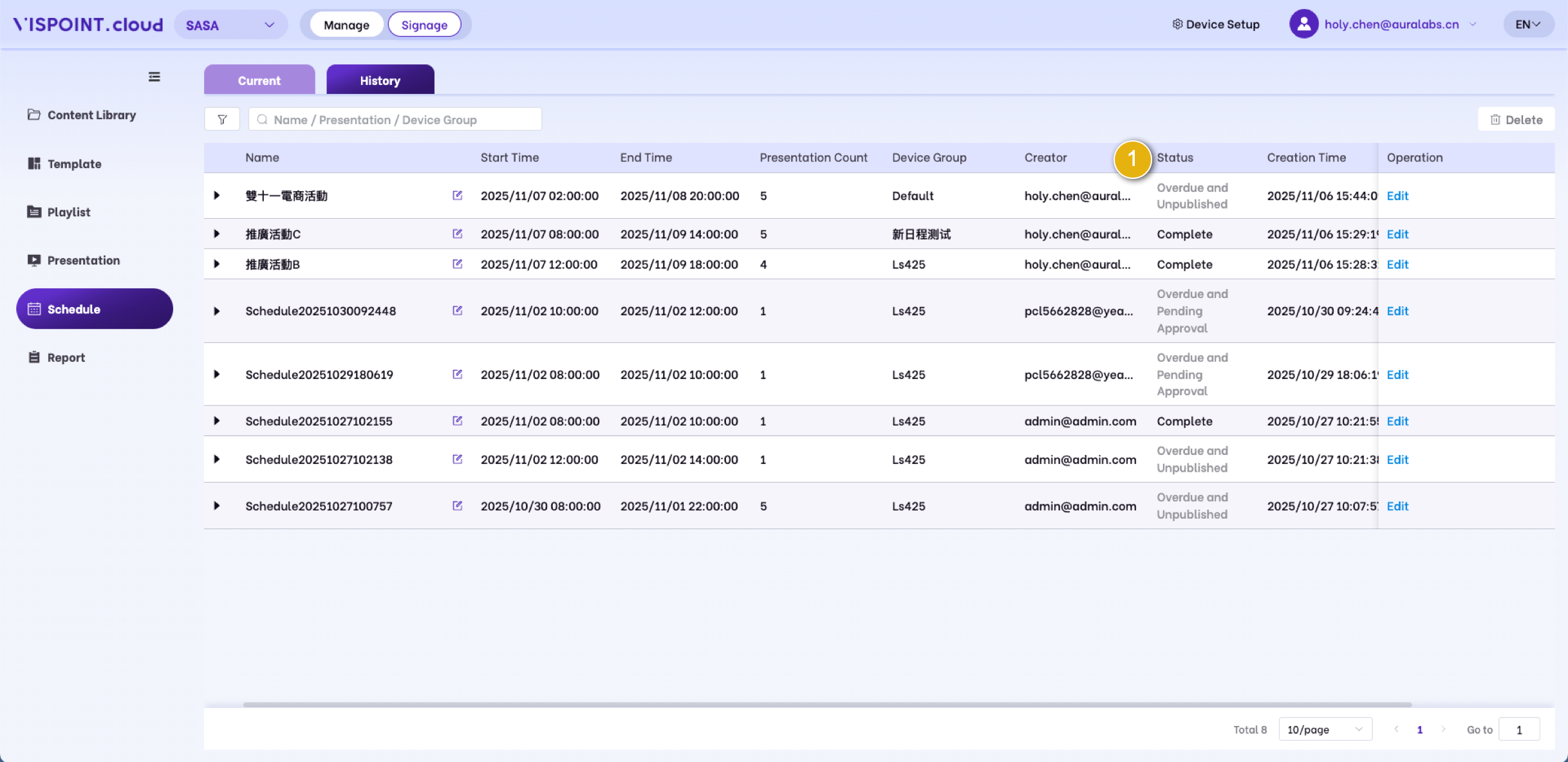
Historical Schedules

1. Status: It includes “Rejected”, “Expired but not published”, “Expired but not reviewed”, and “Completed”. The explanations are as follows:
· Rejected: Refers to the status where the schedule has been submitted for approval but the approval has not been granted.
· Overdue unpublished: Refers to the situation where the schedule has been approved but has not been published by the start date.
· Overdue unreviewed: Refers to the situation where the schedule has been released and is awaiting approval. After the start date, approval personnel have not yet initiated the approval process.
· Completed: Indicates that the schedule has been fully played.

Presentation

Users can add desired playback content in this module.

The demonstration playback template will be used in the “Schedule” section.

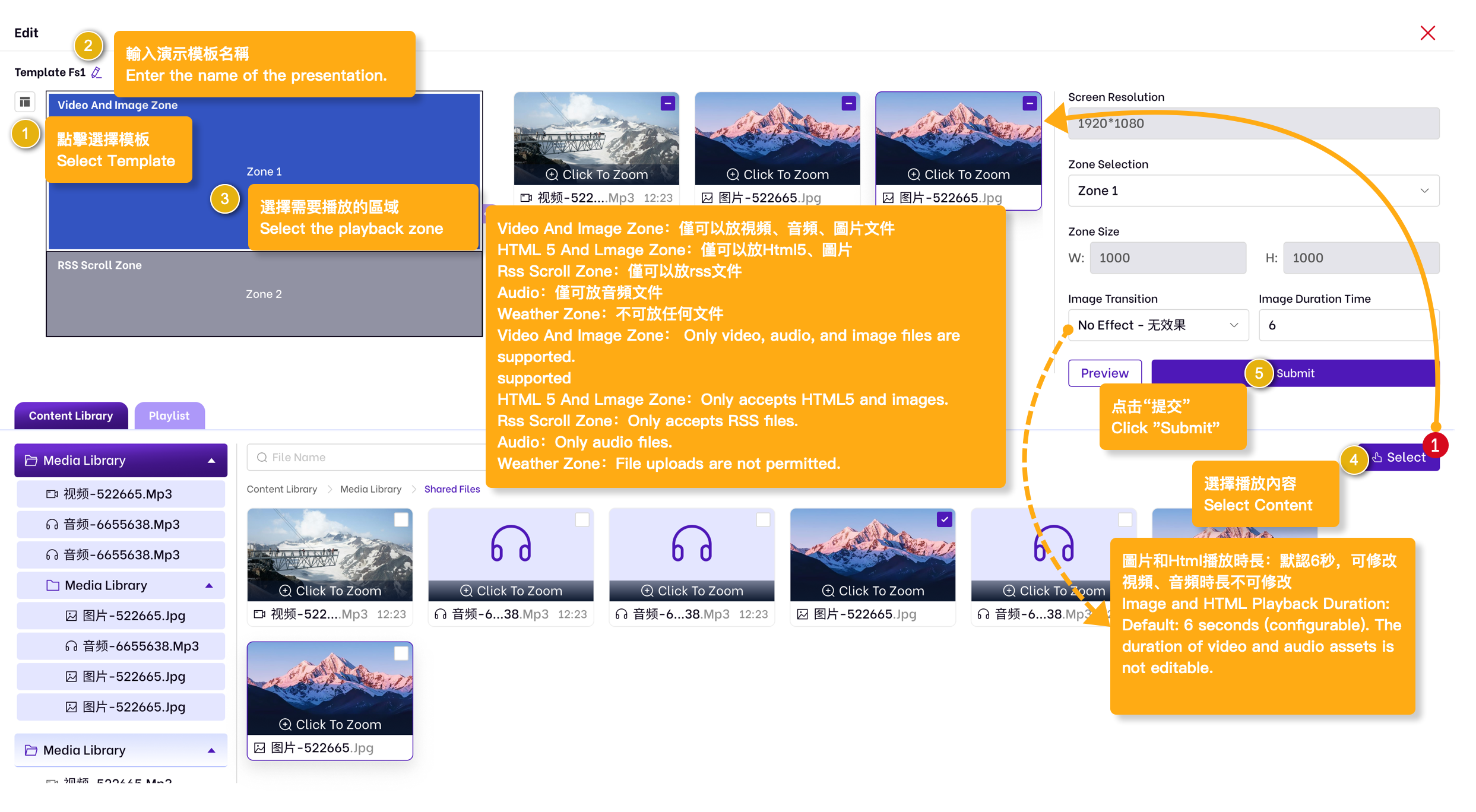
Adding/Editing/Deleting Demo Templates in the Vispoint.cloud Platform

·For Approved Schedules:After schedule approval, modifications to demo templates will not affect existing approved schedules.

·For Pending Schedules (Before Approval):For unapproved schedules, any changes to demo templates will trigger real-time data synchronization and updates.

·Prerequisite: Permission for this module is required.

Add Presentation

Playlist

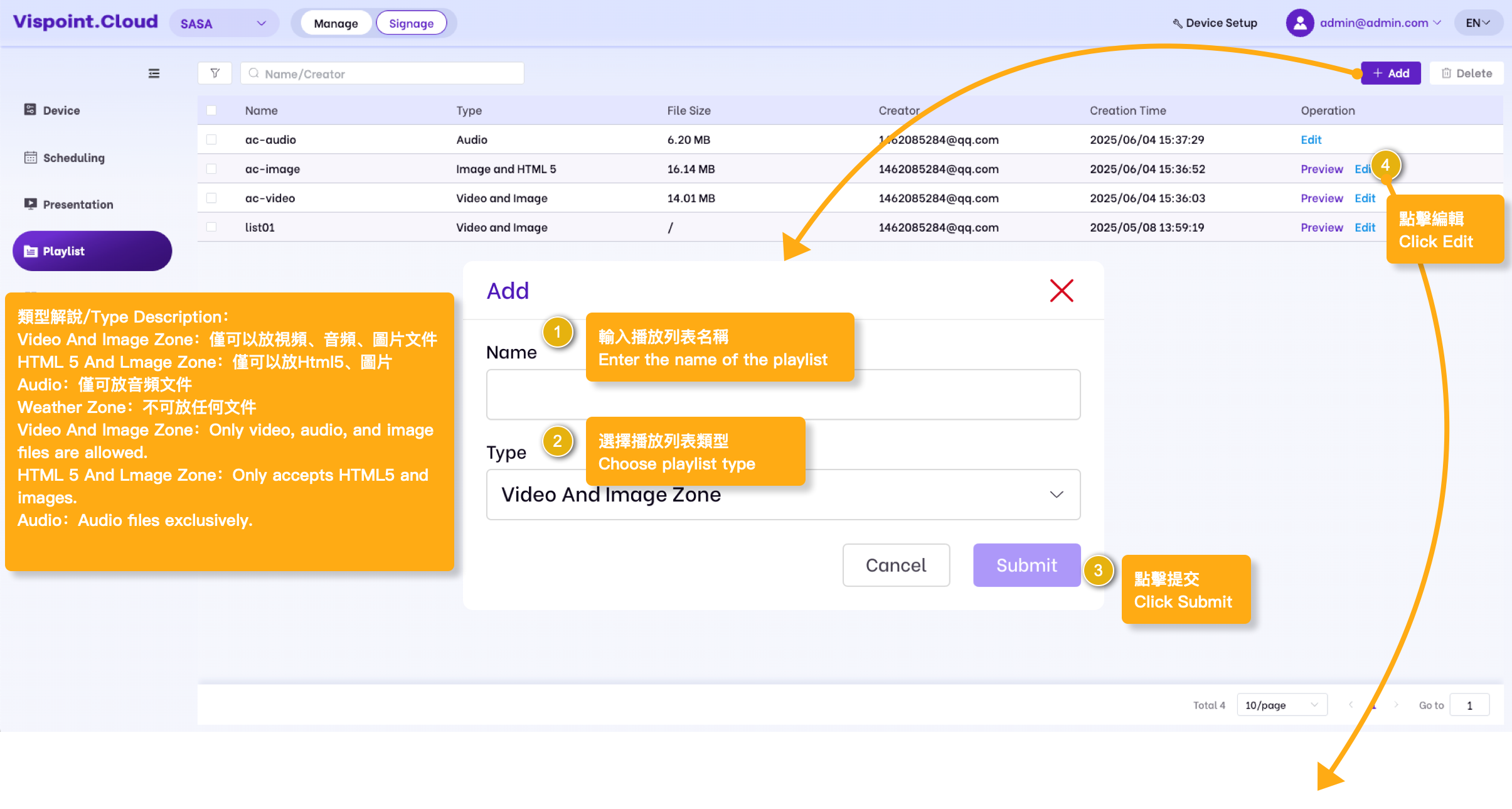
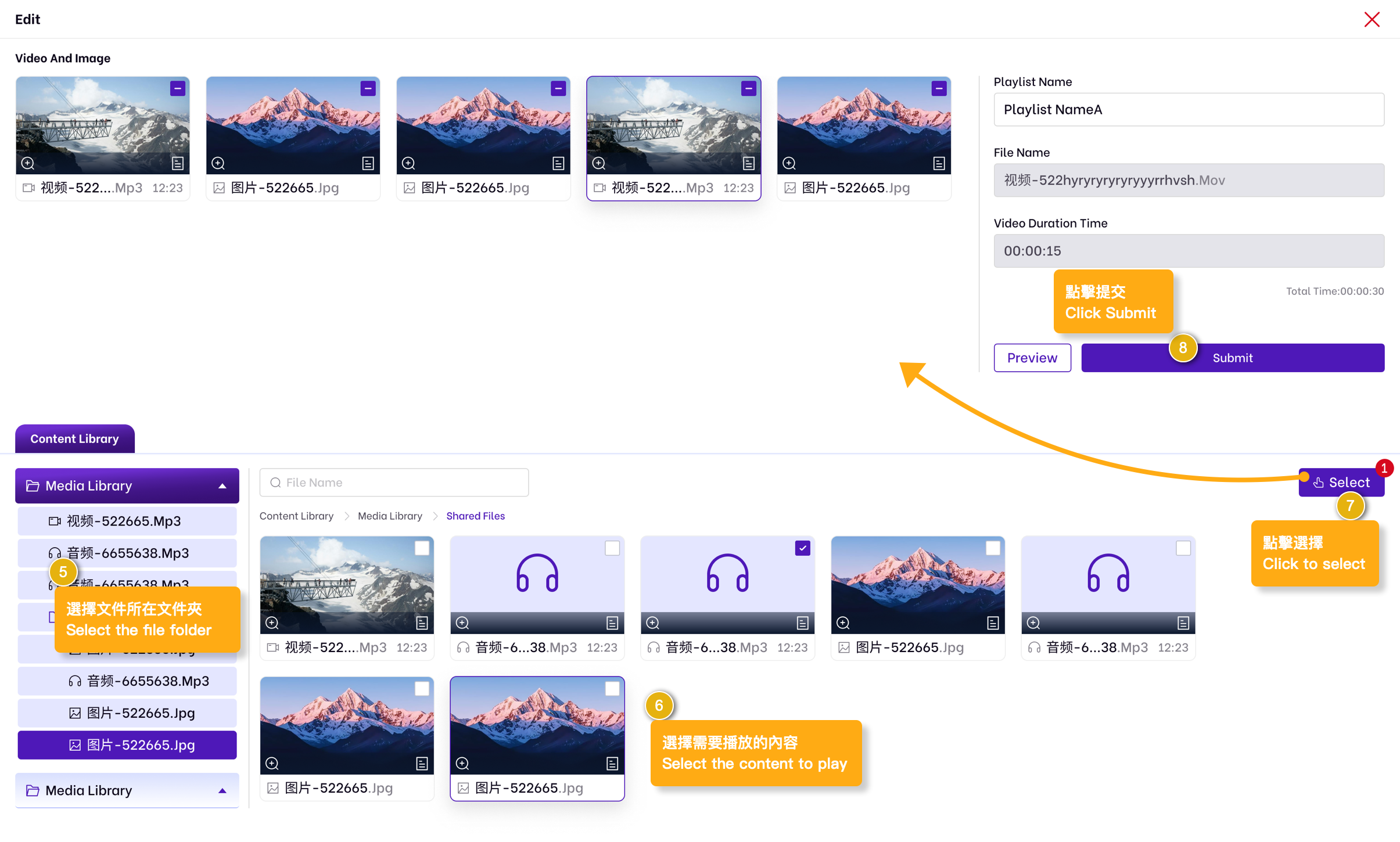
Add Playlist

The playlist will be used in the ‘Demo Playback’; it can play content packaged into a group directly in the demo playback application.

 Add/edit/delete playlists within the Vispoint.Cloud platform.

  • After the schedule has been approved, adding/editing/deleting the playlist within the template schedule will not affect the schedule. 
  • Before the schedule is approved, adding/editing/deleting the playlist within the template schedule will update the data in real-time.
Prerequisite: Have permission for this module.

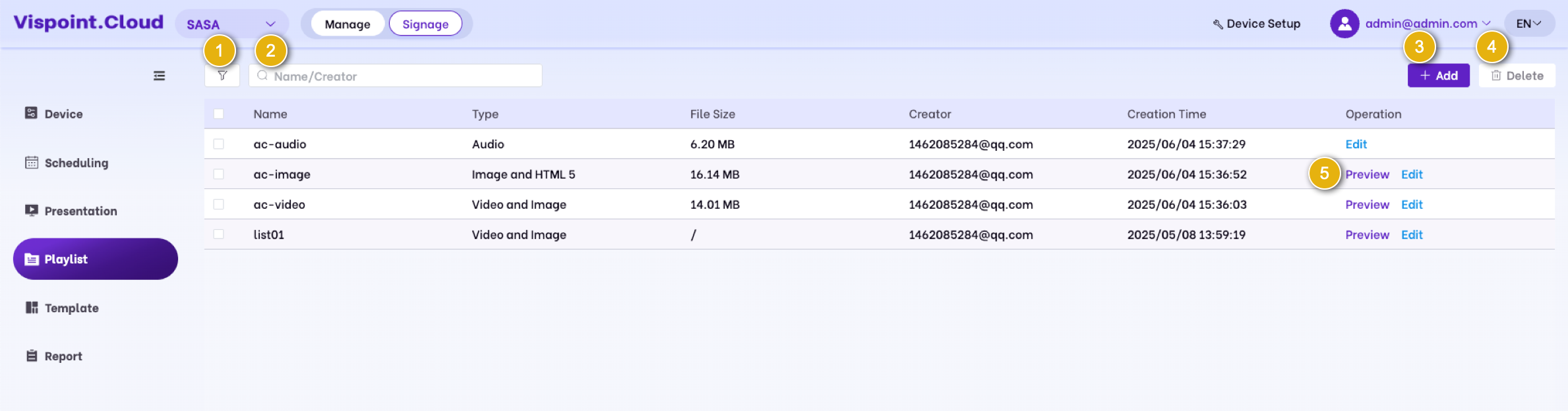
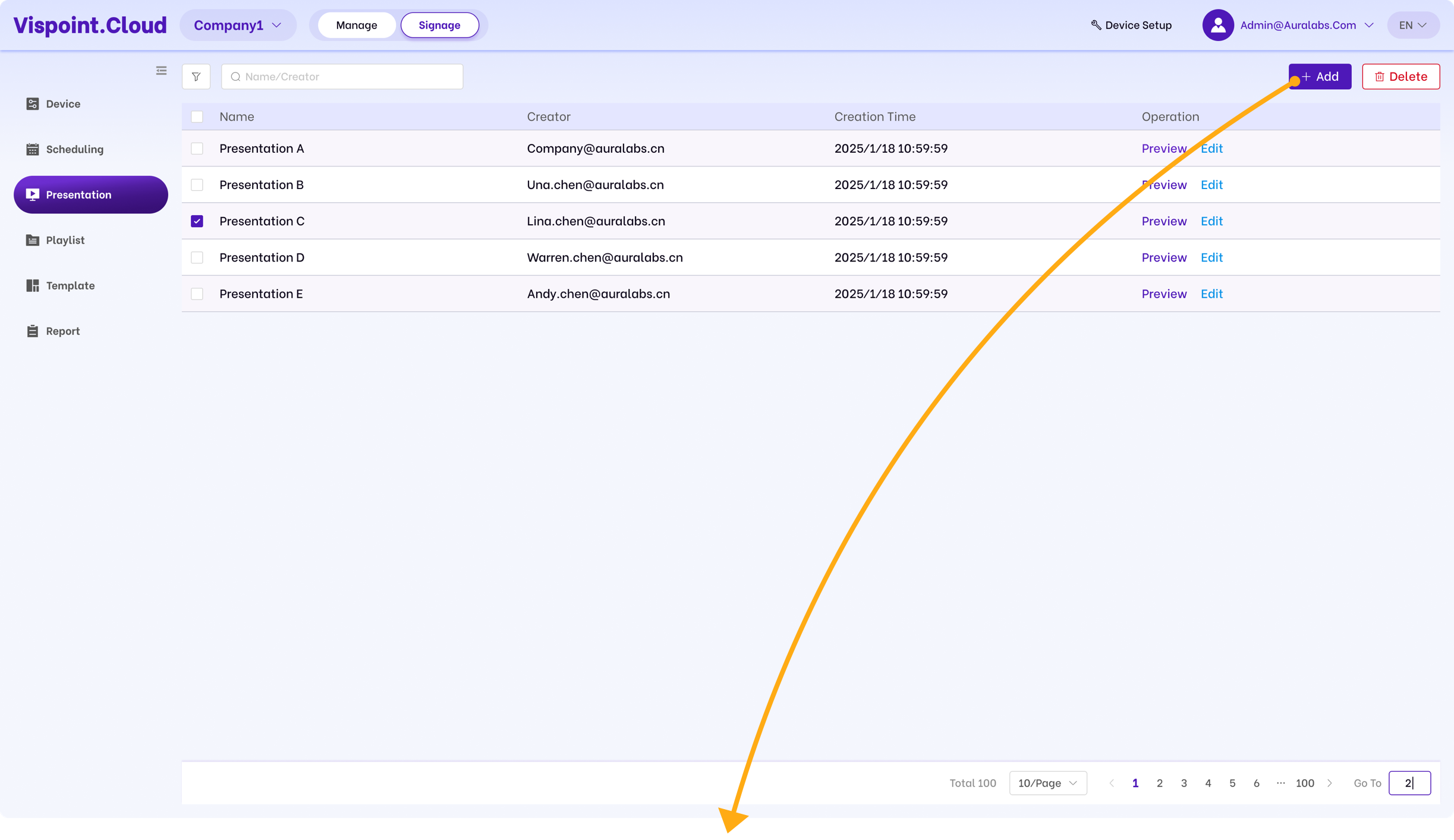
1. Filtering: You can filter the list display based on the creation time.

2. Search: Perform a fuzzy query on the demonstration playlist name and creator keywords to retrieve demonstration data within the list.

3. Add: Click to add, and enter the ‘Add Presentation’ page.

4. Delete: After selecting the devices from the list, click ‘Delete’ and confirm a second time to remove the presentation.

5. Name: The presentation name filled in when adding or editing a demonstration.

6. Preview: Click edit to enter the editing page, where you can make changes.
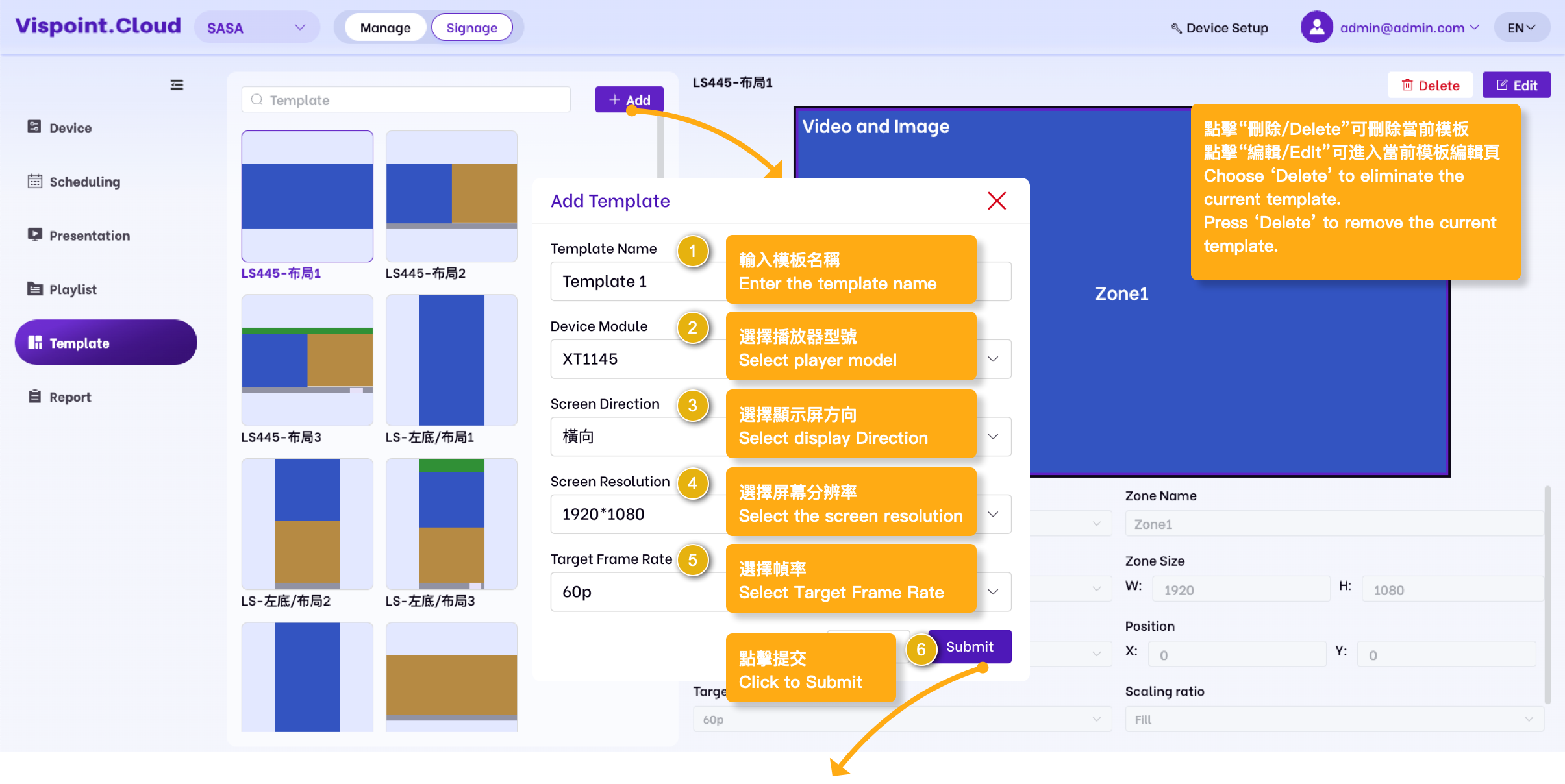
Template

Templates will be used in the “presentation”. 

Add/Edit/Delete templates within the Vispoint.cloud platform. 

– After the schedule has been approved, add/edit/delete templates within the scheduled templates; the schedule will not be affected. 

– Before the schedule is approved, add/edit/delete templates within the scheduled templates; real-time data will be pushed to update the data.

·Prerequisite: Have permission for this module.

Add Template

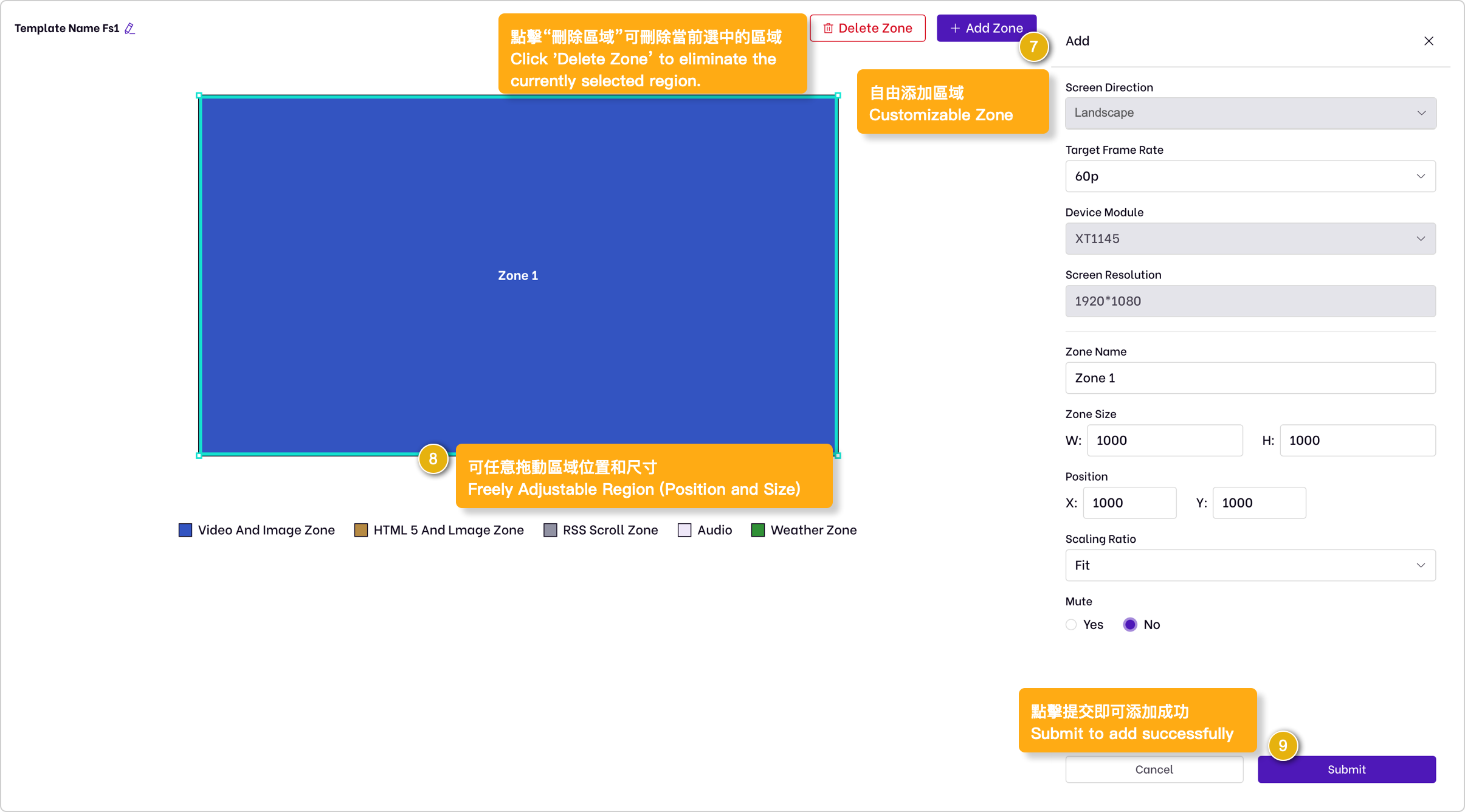
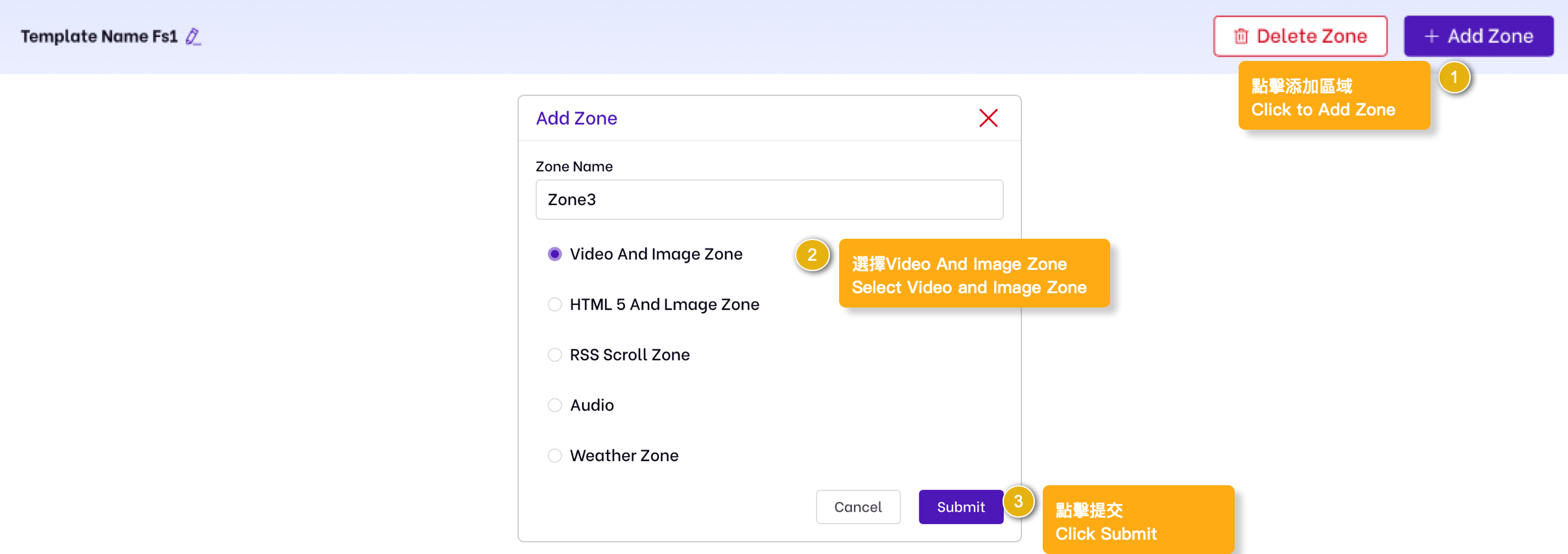
Add Video and lmage Zone

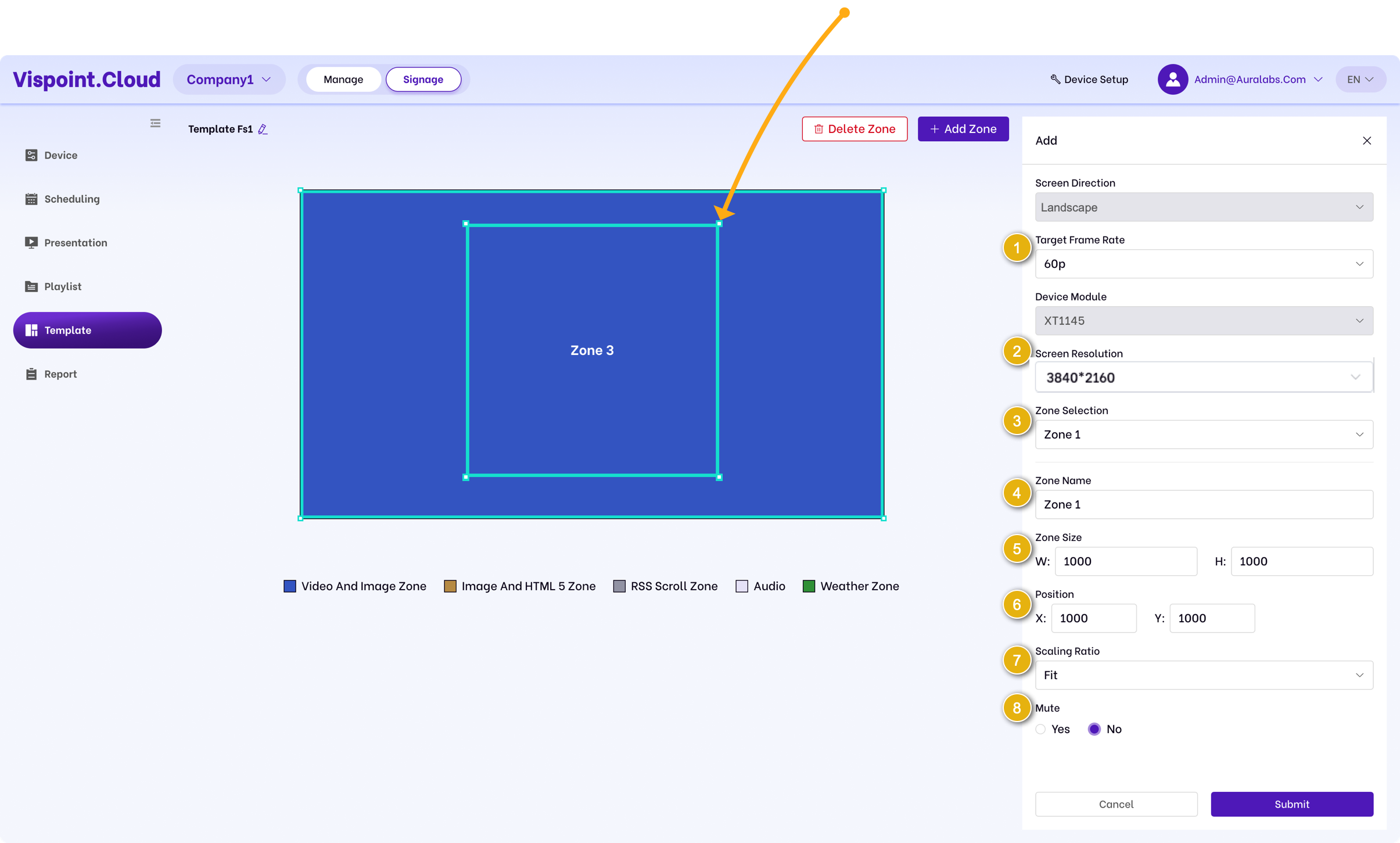
1. Frame rate: Selectable options include 60p/59.94p/50p/30p/29.97p/25p/24p/23.976p/60i/59.94i/50i

2. Screen Resolution: The resolution can be adjusted by scrolling down.

3. Zone Selection: Select the area on the left template, and you can modify the zone name on the right.

4. Zone Name: Select the zone on the left template, and you can modify the zone name on the right.

5. Zone Width: The selected zone on the left template can have its width and height modified.

6. XY Axis: The selected area on the left template can modify the XY axis position of the zone.

7. Zoom Scale: The default area content is scaled proportionally. You can select from options for fit, fill, crop, and fill.

8. Is it muted: Default is No, can be modified.

Scroll to Top